
Switching plans: upgrade and downgrade
How plan changes work: which take effect immediately, which schedule for next renewal.
From the Plans page
From the Plans page you can switch between PAYG, Starter, Pro, Business, or contact sales about Enterprise. Whether a switch takes effect immediately depends on which direction you're going.
Upgrades (immediate)
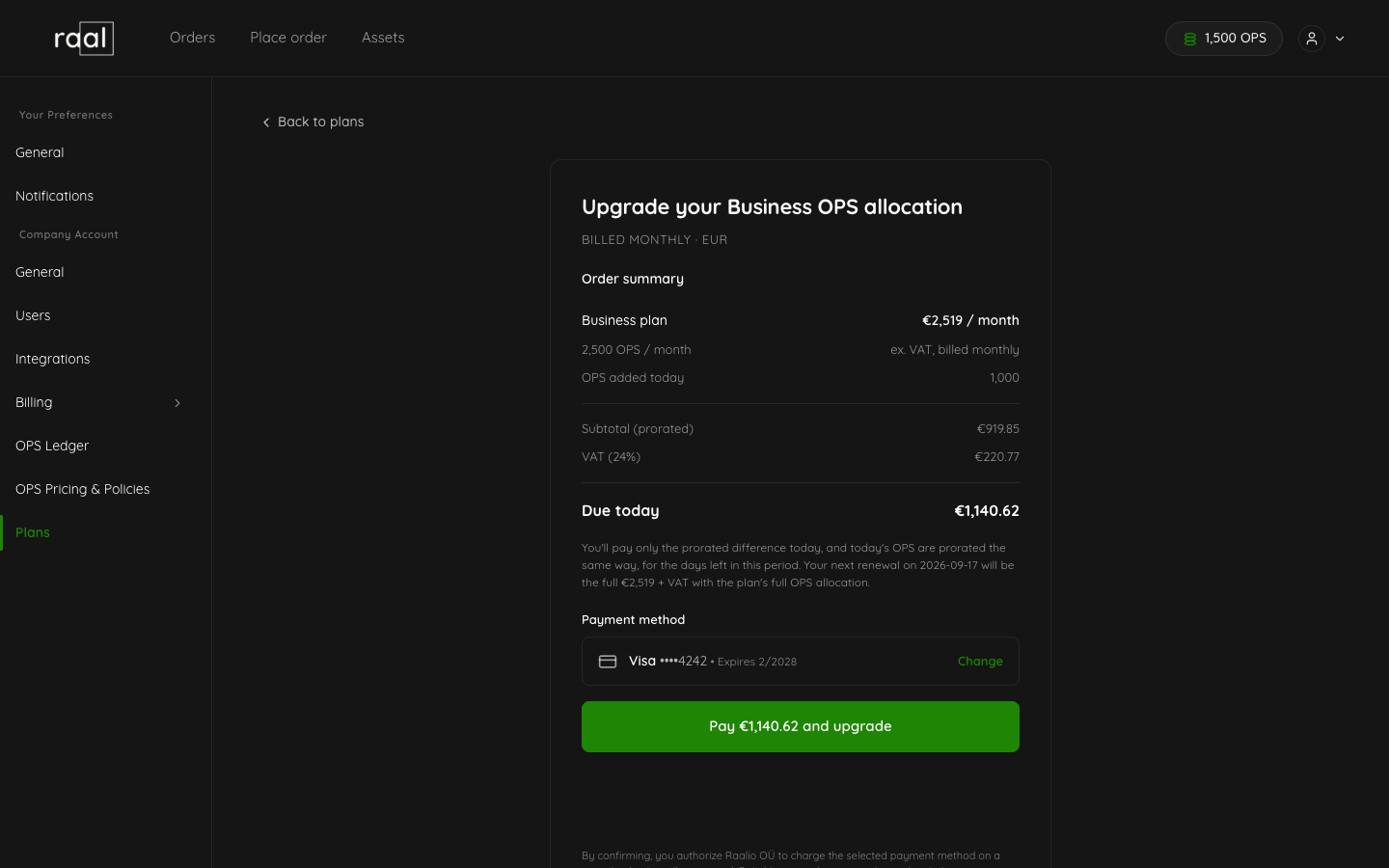
Going to a higher tier, a larger OPS pack, or switching from monthly to annual is treated as an upgrade. Upgrades take effect immediately:
Pick the target plan on the Plans page.
Adjust the OPS pack size and billing period if needed.
Click Switch to this plan (or Update OPS if you're staying on the same tier and just increasing the pack).
Confirm the checkout view. You'll see the prorated charge for the remainder of your current period.
Pay via Stripe. The new plan and its OPS allocation activate at once.
Downgrades (scheduled)
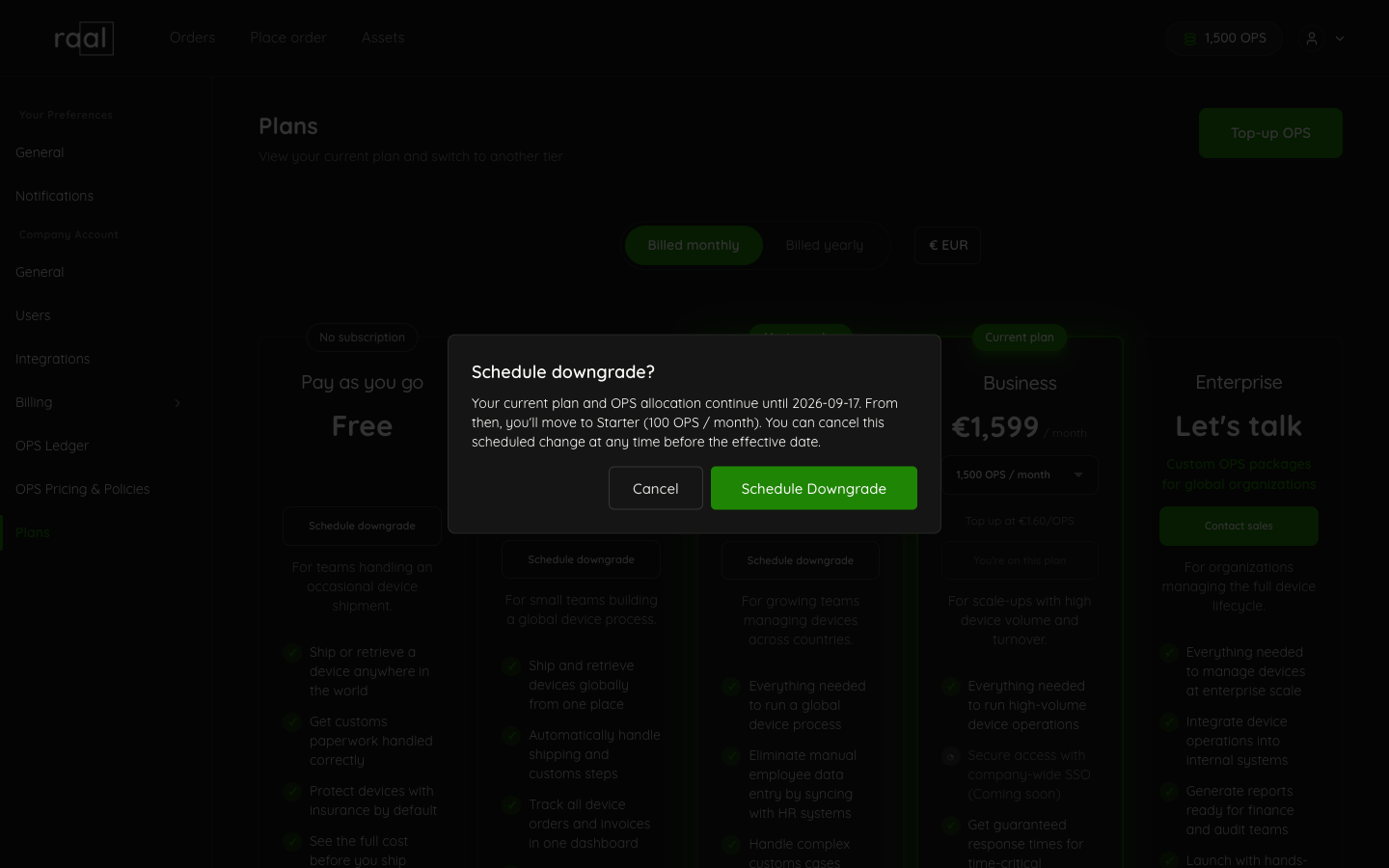
Going to a lower tier, a smaller OPS pack, or switching from annual to monthly is treated as a downgrade. Downgrades are scheduled, not immediate:
Pick the target plan and pack size.
Click Schedule downgrade.
Confirm in the modal. You'll see the date the change takes effect (typically the start of your next billing period).
Between now and that date, you keep your current plan and OPS. On the effective date, the new plan kicks in.
A scheduled-downgrade banner appears at the top of the Plans page until the change takes effect. You can cancel a scheduled downgrade by clicking Cancel on that banner.
Switching to PAYG
Going to PAYG from a paid plan is a downgrade. It cancels your subscription and stops further OPS allocation; any subscription OPS already in your balance expire at the end of the current billing period. Top-up OPS are unaffected.
Currency
You can switch between EUR, USD, and GBP on the Plans page. The new currency takes effect on the next billing cycle; in-flight charges keep the original currency.