
Your billing settings explained
Every option on the Billing page, what changes when you pick it, and how card payments and bank transfers each work.
The Billing page holds your company's payment identity, who receives your invoices, and how you pay. This article goes through every option on that page and what changes when you pick it, then explains how the two payment methods, card and bank transfer, each work in practice.
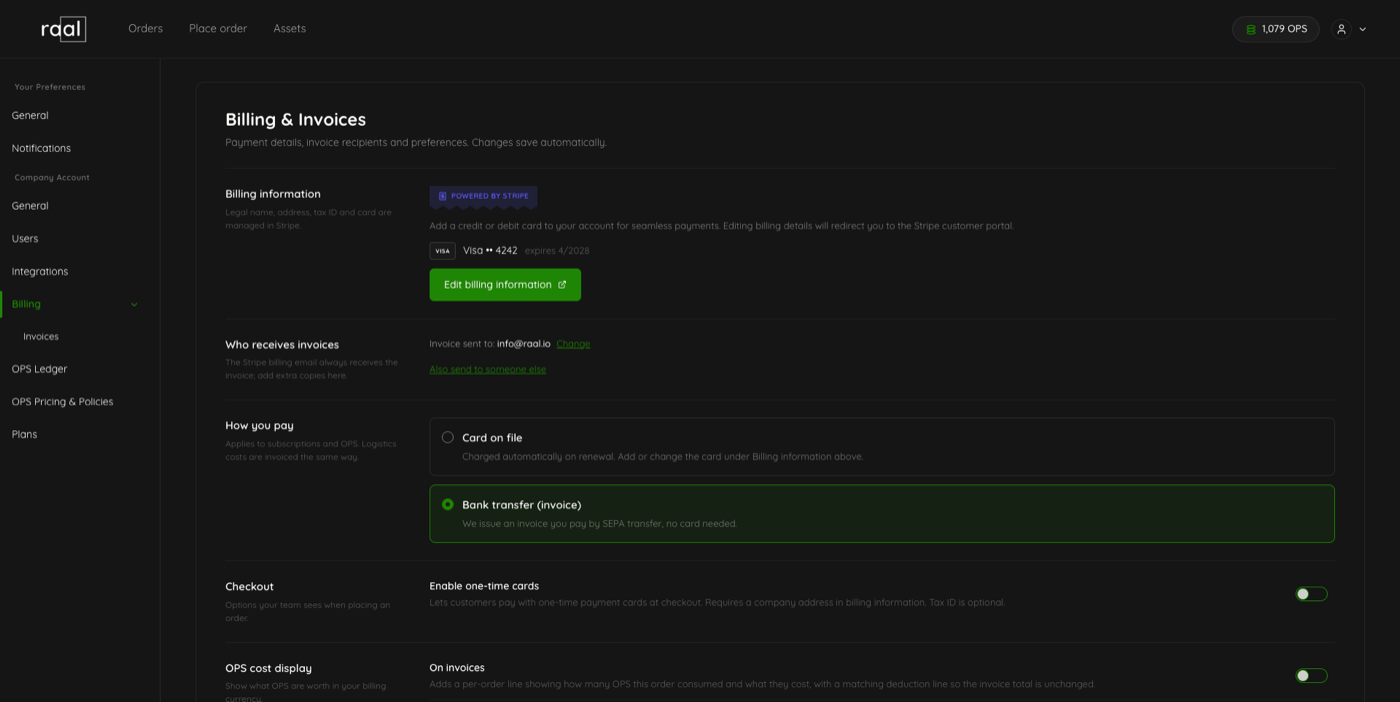
Where to find it, and who can change it
Open the account menu in the top-right corner of the portal and choose the settings option.
In the left sidebar, under Company Account, click Billing.
Only admins can open this page. If you are an Editor or a Viewer, the portal quietly shows your own personal settings instead, with no error message. Ask an admin on your account to make the change for you. See Roles explained: Admin, Editor, Viewer.
There is no Save button. Every control on this page saves the moment you change it, and a short confirmation appears in the corner. If a change cannot be saved, the control snaps back to what it was and tells you why.
Billing information
Your legal company name, billing address, tax or VAT ID and your cards all live in Stripe, not in Raal. Edit billing information opens the Stripe customer portal, where you change them; you come back to Raal when you are done.
Underneath the button, Raal shows the card Stripe has on file: the brand, the last four digits and the expiry date. If there is none, it says No card on file. If the card has expired, it is marked EXPIRED with the note "This card can no longer be charged. Add a replacement under Edit billing information to keep placing orders."
Two things are worth knowing about this row:
It shows the card that is stored, not necessarily the card that will be used. If your company pays by bank transfer, a saved card still appears here, but checkout will never offer it.
An expired card counts as no card. What that means depends on how you pay. On the card path, checkout stops and the "Billing not configured" banner comes back until you replace it. If your account is eligible for bank transfer, meaning Starter tier or above, a missing or expired card blocks nothing, because you can be invoiced instead. Eligibility is what counts here, not which of the two options you have selected.
The one detail the portal genuinely needs from this screen is the country on your billing address, because it decides the tax on your orders. See Setting up your billing details and VAT and tax on invoices.
Who receives invoices

Every invoice goes to one main address, shown as Invoice sent to. You can add up to 5 extra addresses that receive a copy, which is the usual way to loop in an accounts payable mailbox.
Click Change to edit the main address.
Click Also send to someone else to add recipients. Each saved address appears as a chip with an X to remove it.
Everything saves as you go.
How you pay

This is the choice between the two payment methods. It applies to your subscription and to OPS, and logistics costs are invoiced the same way.
Card on file - charged automatically on renewal, using the card managed under Billing information.
Bank transfer (invoice) - we issue an invoice you pay by SEPA transfer, and you do not need a card at all.
Bank transfer has two conditions:
It is available from the Starter plan upward. On Pay as you go the option carries a "Starter and above" label and clicking it offers an upgrade instead of selecting it.
Your account must be billed in EUR. If you are billed in USD or GBP, the row is replaced by a note saying payments are by card. USD and GBP options will be added soon.
Switching from bank transfer back to card is never restricted, and takes effect the same way. One thing to plan for: if you later downgrade to Pay as you go, your account moves back to card payment automatically, so add a card before the downgrade date.
What each method actually does is covered in How card payments work and How bank transfer works below.
Checkout: enable one-time cards
Turning this on lets your team pay with a card that is not saved to the account. At checkout an extra option appears to pay with a different card. It requires a company address in your billing information; a tax ID is optional.
There is a second, less obvious effect. With one-time cards enabled, having a billing address is enough for the account to count as set up, so the "Billing not configured" banner clears even when no card is saved.
OPS cost display

Two independent switches. Neither changes what you pay; they only decide whether OPS are shown with a currency value next to them.
On invoices
Adds one extra line per order to your invoice, stating how many OPS the order used, what they were worth, and which invoices paid for them. The line costs nothing and carries no tax, so your invoice total is unchanged. It reads like this:
Order #2026000164 OPS prepaid via subscription/top-up: 100 OPS @ 1.07 EUR = 107.00 EUR. Funded by invoice no INV-0385 (2026-05-01).
In the Customer Portal
Adds currency values next to OPS figures inside the portal: a tooltip on the OPS chip in the header, a value alongside order totals, and the money columns in the OPS bill.
Invoices
The bottom of the Billing page lists your three most recent invoices, with View all invoices leading to the full list under Company Account > Invoices.
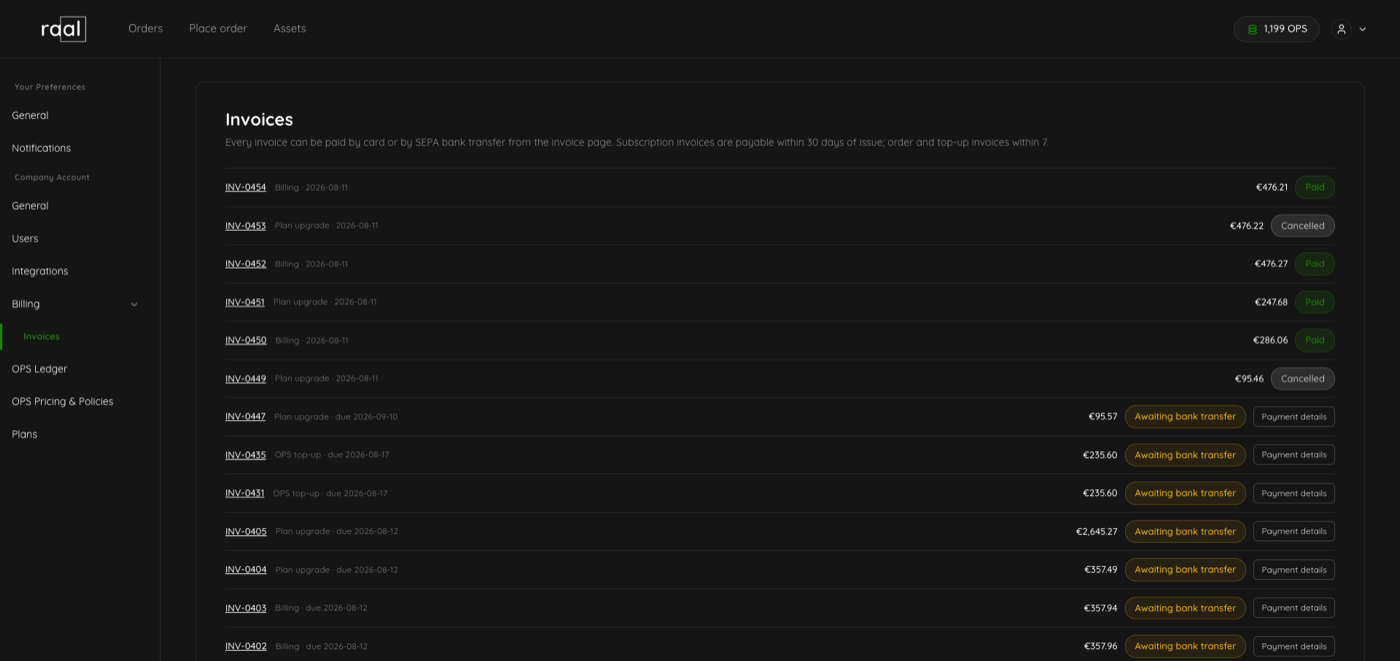
Each row shows the invoice number, what it was for (Subscription, Subscription renewal, Plan upgrade, OPS top-up, Order or Monthly consolidated invoice), the amount, and a status. Invoices that are still owed show their due date; settled ones show the date they were issued.
Unpaid - issued and owed.
Awaiting bank transfer - transfer instructions have been issued and your payment may already be on its way. It is kept separate from Unpaid on purpose.
Paid - settled, nothing to do.
Cancelled - the invoice was voided and you owe nothing on it.
Overdue - past the due date and still unpaid.
The page states your payment terms at the top: subscription invoices are payable within 30 days of issue, order and top-up invoices within 7.
Paying an invoice
How you pay is determined by the payment method set in your billing settings. Only one method is active at a time, and you can change it whenever you like. Invoices already issued follow the method that was active when they were created.
If your billing settings are set to card: Click the invoice number to open the invoice page and pay there.
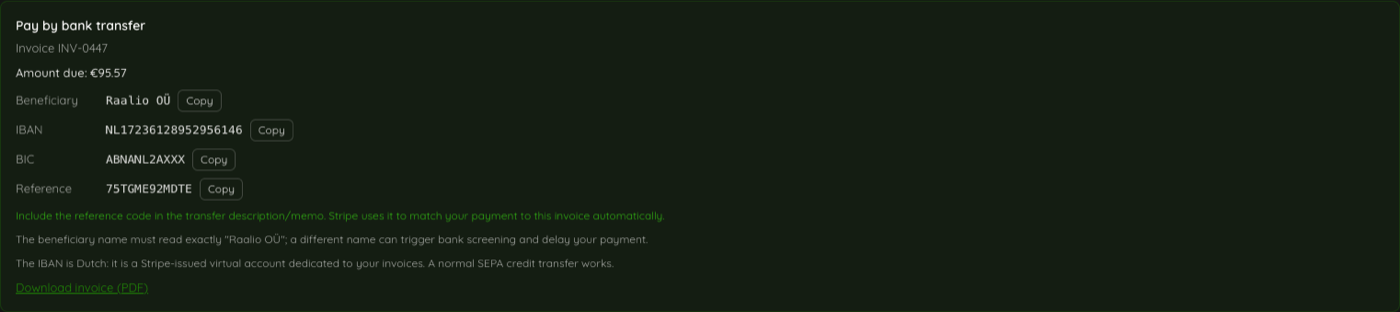
If your billing settings are set to bank transfer: Click Payment details on the invoice row to expand the beneficiary, IBAN, BIC and reference code, each with a Copy button. On these invoices, the invoice number links to the PDF rather than the payment page.
Changing your payment method: Go to Billing settings and switch between card and bank transfer. The change applies to invoices issued from that point on.
How card payments work
Placing an order: nothing is charged while you are building the order. On the final step the button reads Confirm and pay with the amount, and the charge happens when you click it. You then see a payment confirmation.
Subscriptions and top-ups: charged when you confirm the purchase.
Renewals: your card is charged automatically on your renewal date. There is nothing to approve.
Due dates: card invoices do not carry one. They are collected as they are issued.
If a card is declined: you see the reason your bank gave and can try again. Nothing is created until the payment succeeds.
If the card has expired: checkout stops and tells you to replace it under Configuration, Billing before paying.
How bank transfer works
Nothing is issued while you are still deciding. On the final step the button reads Confirm and send invoice with the amount. Clicking it issues the invoice and emails it to everyone on your recipients list.
You get the transfer details in three places: on screen immediately after you confirm, in the invoice email, and any time afterwards under Company Account > Invoices > Payment details.
Making the transfer land cleanly
Put the reference code in the transfer description or memo. That code is what matches your payment to the right invoice automatically.
The beneficiary must read exactly "Raalio OÜ". A different spelling can trigger your bank's screening and delay the payment.
The IBAN is Dutch. It is a virtual account issued for your invoices specifically. An ordinary SEPA credit transfer is all that is needed.
What happens while you wait
Nothing activates until the money arrives. A new plan, a plan upgrade or an OPS top-up stays pending; your current plan keeps running in the meantime, and the Plans page shows what is waiting and when it is due. For a shipment order, we start the process once the funds are received.
Payment terms are 7 days for order and top-up invoices, 7 days for the monthly consolidated invoice, and 30 days for subscription invoices. A SEPA transfer usually settles in a working day or two, and the invoice list updates itself while you have it open.
If you see "Billing not configured"
This banner appears on your dashboard and blocks checkout until the account can actually be billed. Two things must be true:
Your billing address in Stripe has a country.
You have a way to pay: a valid, unexpired card, or bank transfer available to you (Starter and above, billed in EUR), or one-time cards enabled.
Editors see a different version of the banner asking them to contact an admin, because only admins can fix it.
What is not on this page
When you pay, as opposed to how, is a separate setting. Pay at order placement, pay after fulfilment and monthly consolidated invoice live under Company Account > OPS Pricing & Policies. See Payment policies: at order placement, after fulfilment, or monthly invoice.
Your plan and monthly OPS allocation live under Company Account > Plans.