
Adding an asset to the register
The seven step Add asset wizard, what is actually required, and the fields that behave differently from the rest.
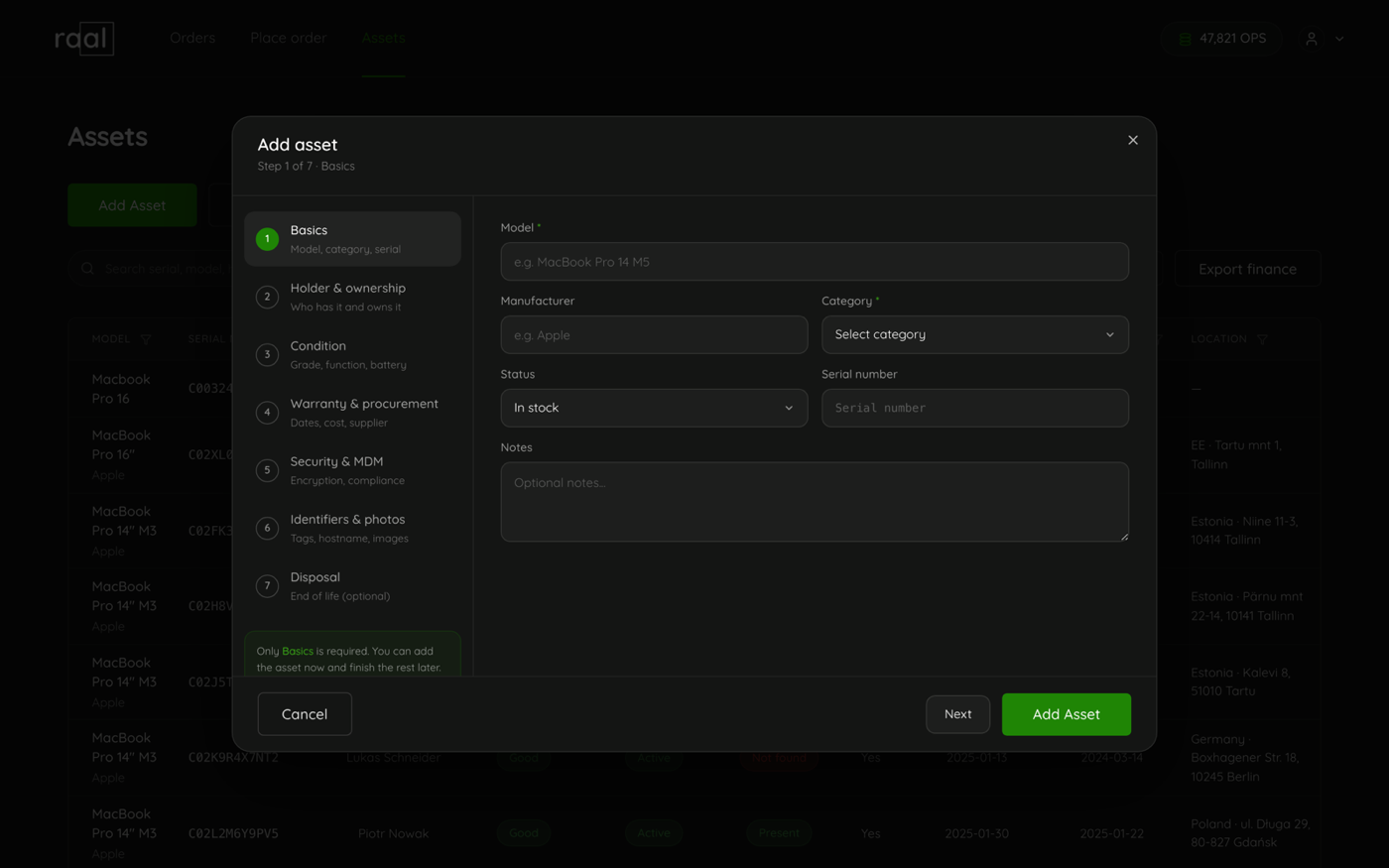
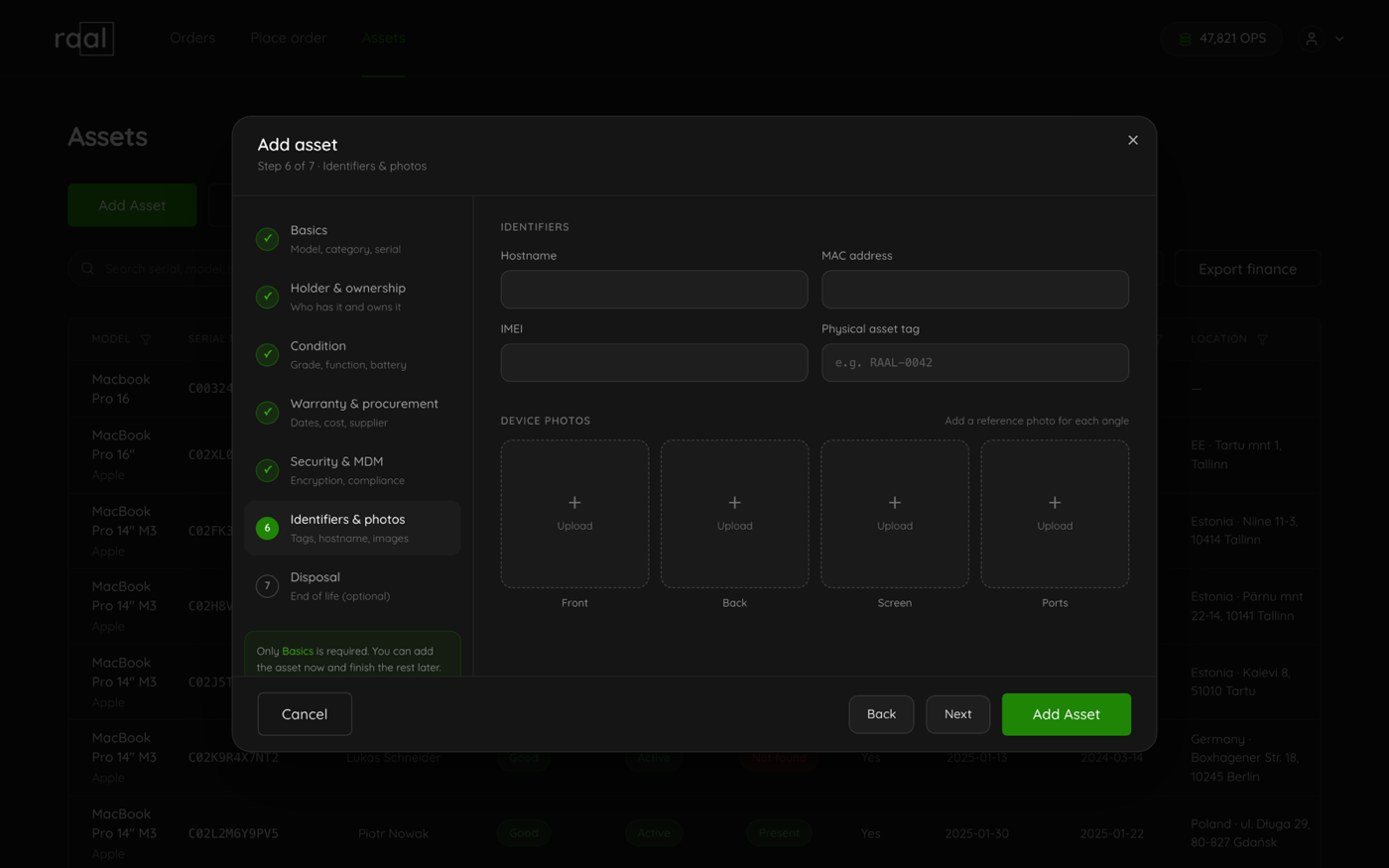
Click Add asset on the Assets page to open a seven step wizard. The subtitle tells you where you are, for example "Step 1 of 7 . Basics".
Only two fields are required
The wizard says so itself: "Only Basics is required. You can add the asset now and finish the rest later." In practice only Model and Category have to be filled in. Everything else can be added later, and the steps in the left rail are clickable in any order, so you do not have to walk through them in sequence.
The seven steps
Basics: model, manufacturer, category, status, serial number and notes. Status defaults to In stock.
Holder and ownership: who has the device, and whether it is company owned, leased or BYOD.
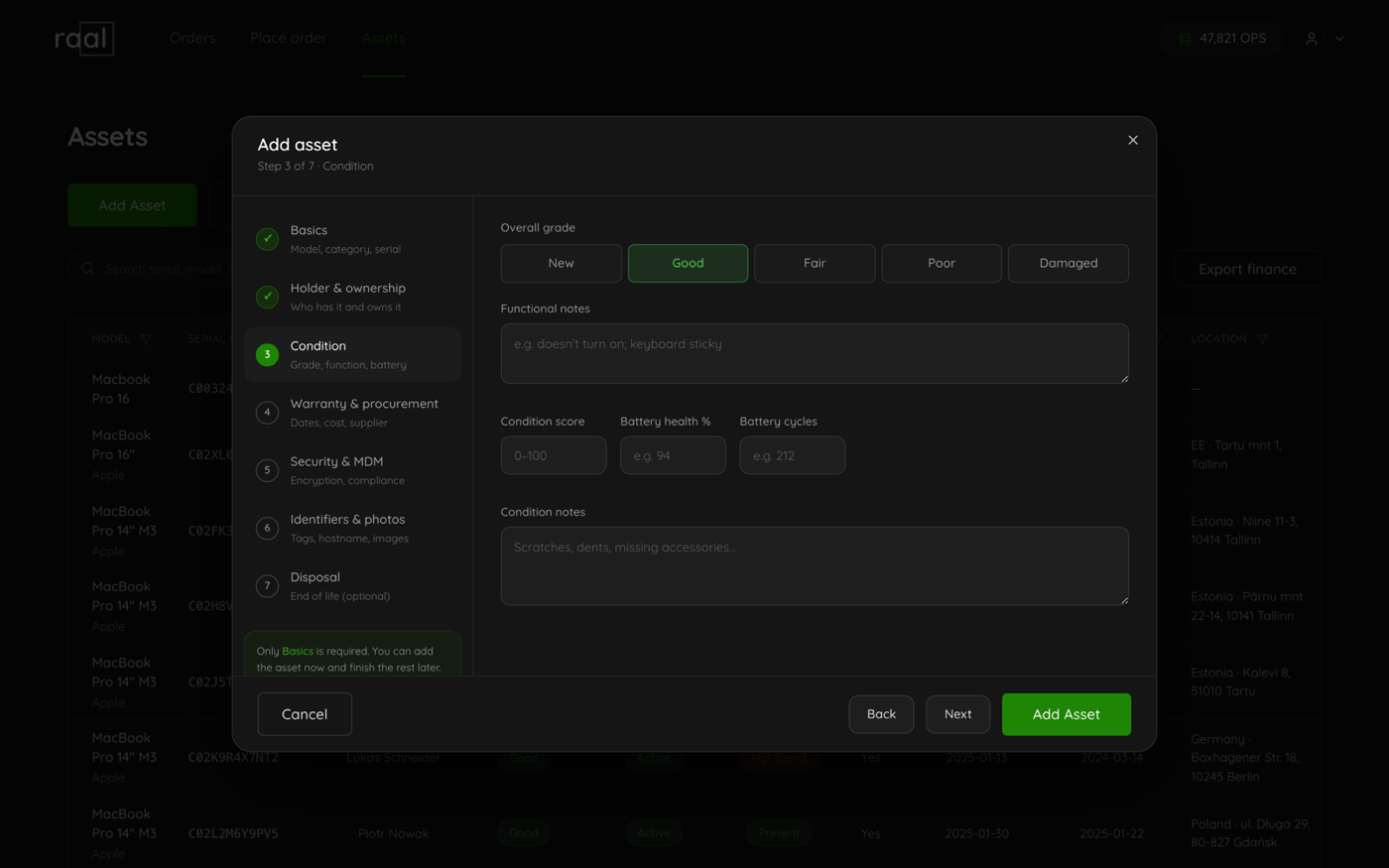
Condition: grade, functional notes, condition score, battery health and cycles.
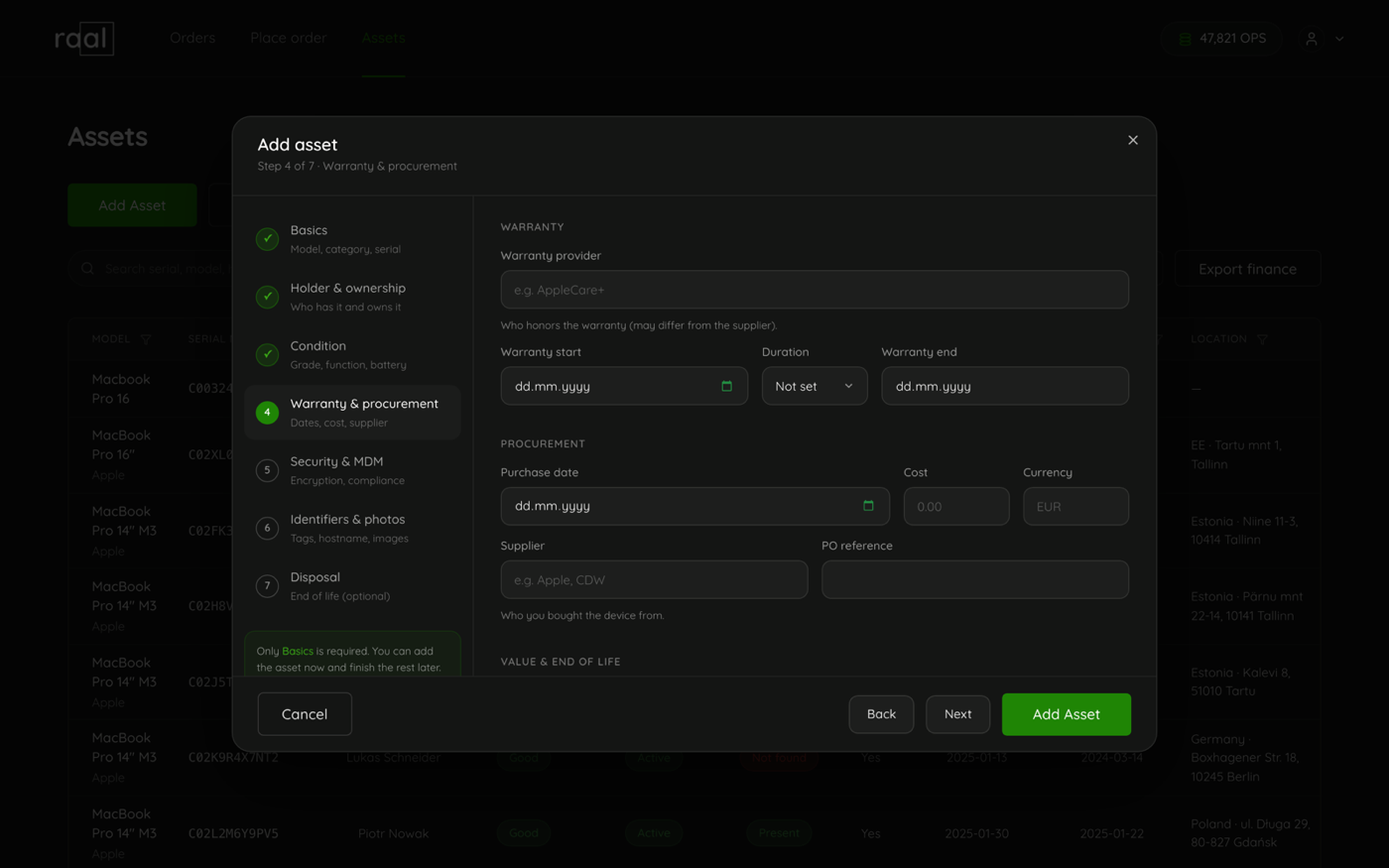
Warranty and procurement: warranty dates and provider, purchase date, cost, currency, supplier and PO reference.
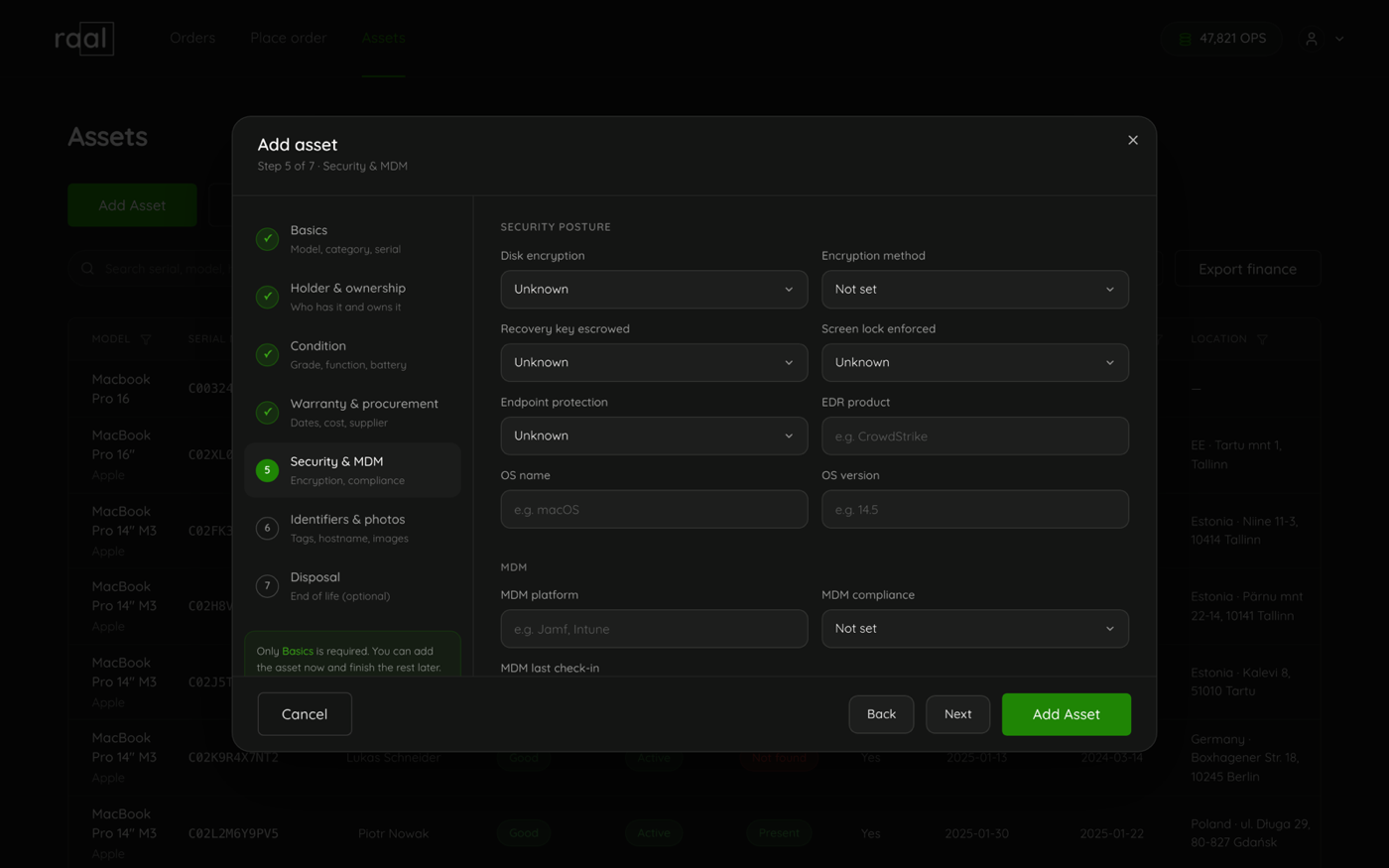
Security and MDM: disk encryption, recovery key escrow, screen lock, endpoint protection, and your MDM platform and compliance state.
Identifiers and photos: hostname, MAC address, IMEI, physical asset tag, and up to four device photos.
Disposal: only fill this in when the device is being returned or retired.
Fields that behave differently
Warranty end cannot be typed. Set Warranty start and a Duration and the end date is calculated for you.
Serial number has to be unique within your company. Reusing one gives "Serial number already exists for this company".
Device in use from locks once it has a value. To change it, click Override. The field says why: "Locked once set. Overriding is recorded in Activities."
Asset tag is generated for you, but you can replace it with your own on step 6.
Saving
Click Add asset in the footer from any step. If something is wrong the wizard jumps back to the step that holds it, and there are only three things it can complain about: a missing model, a missing category, or a holder email address that is not a valid email. On success you get "Asset added" and the device appears in the register.
The dialog deliberately does not close when you click outside it, so a half filled form is not lost by accident. Use Cancel, the X, or Escape.