
Deactivating or reactivating a user
How to suspend a user's access without removing them, and how to bring them back.
When a teammate leaves the team
When a teammate leaves the team (temporarily or permanently), deactivate their account rather than deleting it. Deactivation revokes access but keeps the history of orders and comments attached to that user. Reactivation restores access.
Who can do this
Only Admin users can deactivate or reactivate other users.
How to deactivate
Open Settings, then Users under Company Account.
Find the user in the team-members list.
Toggle the active switch off.
The user's access is revoked immediately. If they're currently signed in, their next API call will fail and they'll be sent back to the login page.
Their role badge stays visible; the toggle is now off. They no longer occupy a place on your plan: the count is of active users only, so deactivating someone frees their place for a new invite.

How to reactivate
The same Users page.
Find the deactivated user (sort or scroll; deactivated users still appear in the list).
Toggle the switch on.
Access is restored immediately. They can sign in with their previous credentials, and Continue with Google or SSO still works if that is how they signed in before.
Deactivate vs delete
Deactivate (toggle off): reversible. Orders and comments stay attributed to the user. Use this when someone is on leave, has changed teams, or has left the company but you might bring them back.
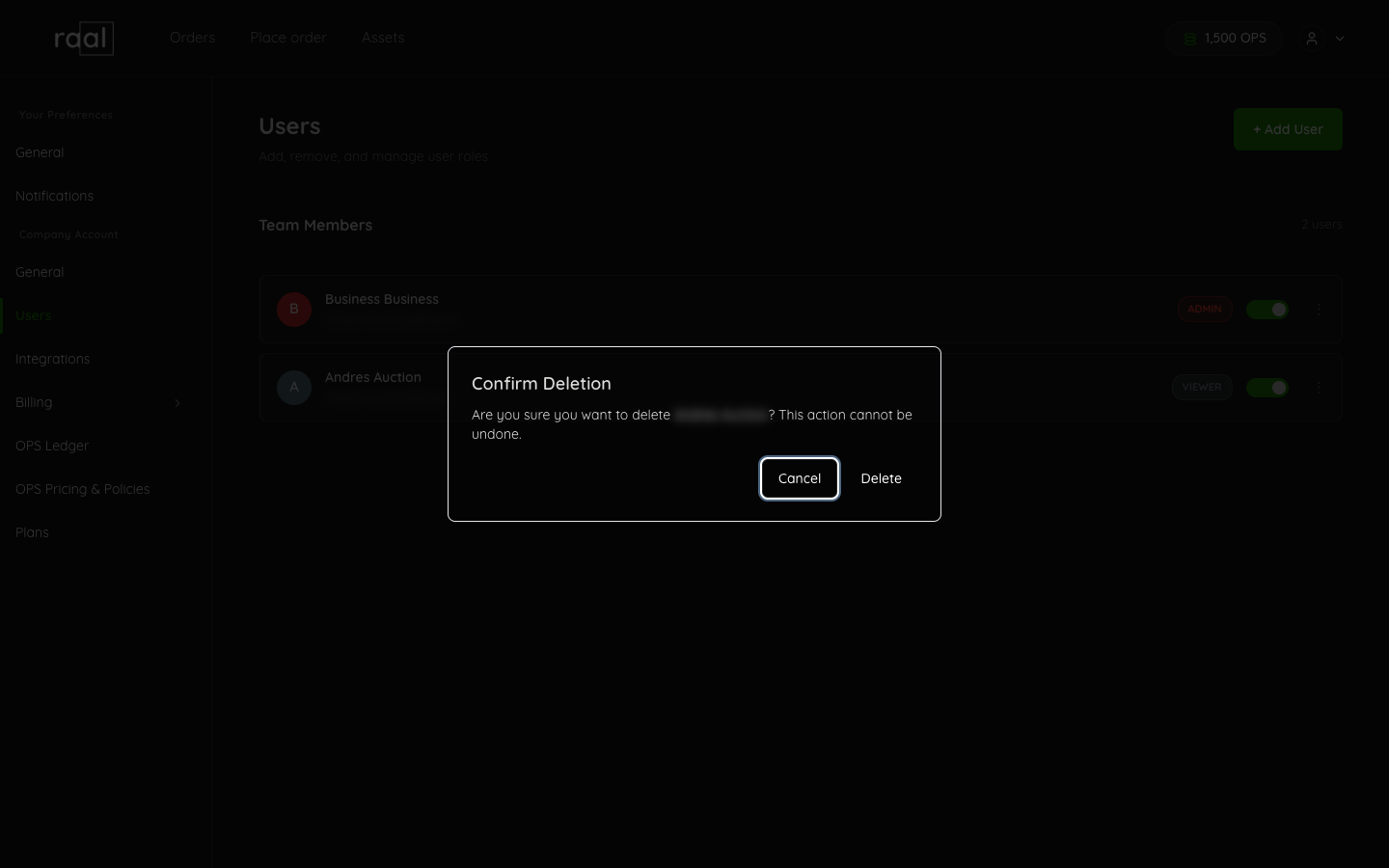
Delete (the three-dot button on the row): permanent (subject to data-retention rules). A dialog headed Confirm Deletion asks you to confirm and warns that the action cannot be undone. The user disappears from the team-members list. Orders they placed are still in the system (orders aren't deleted), but the user record is gone. Use this when you're sure the person will never come back.
What deactivated users don't lose
Their order history, comments, and audit trail. If a deactivated user previously placed an order that's still in flight, the order continues normally; only the user's ability to view or comment is blocked.
Plan seats and contractual notice
Two different things, and only the first one happens in the portal.
Plan seats. Pay as you go includes one user; Starter, Pro and Business do not cap them. The cap is checked when you add someone, never when you remove them, and nobody is deactivated automatically.
Your contract. If your agreement with Raal sets a minimum number of Active Users, reducing below it has notice periods of its own. Check your Terms of Use, or ask your Raal contact, before planning a large reduction.