
Adding a teammate to your Raal account
How to invite a new user and assign them a role.
Inviting a teammate
Inviting a teammate gives them access to your company's Raal workspace. They can place orders, view invoices, or just look at reports, depending on the role you pick.
Who can add users
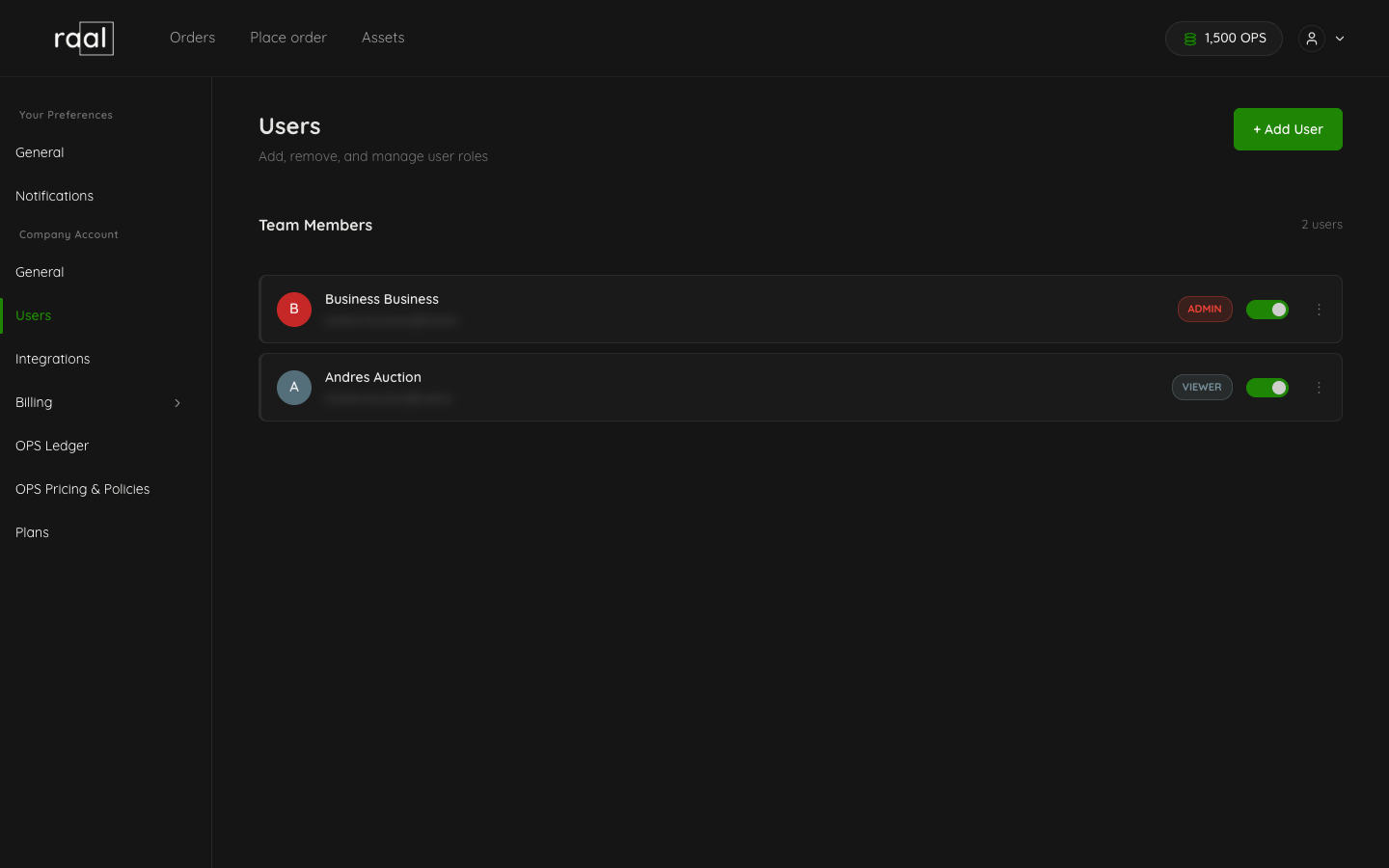
Only Admin users can add or remove team members. If you don't see the + Add User button on the Users page, your role is Editor or Viewer; ask an Admin to make the changes.
How many users your plan includes
Pay as you go includes a single user. On that plan the Add User button is locked, and clicking it explains that inviting people needs the Starter plan or higher. Starter, Pro and Business do not cap the number of users, and the Team Members header shows the current count.
Steps to add a user
Open Configuration, then Users under Company Account.
Click + Add User in the top right.
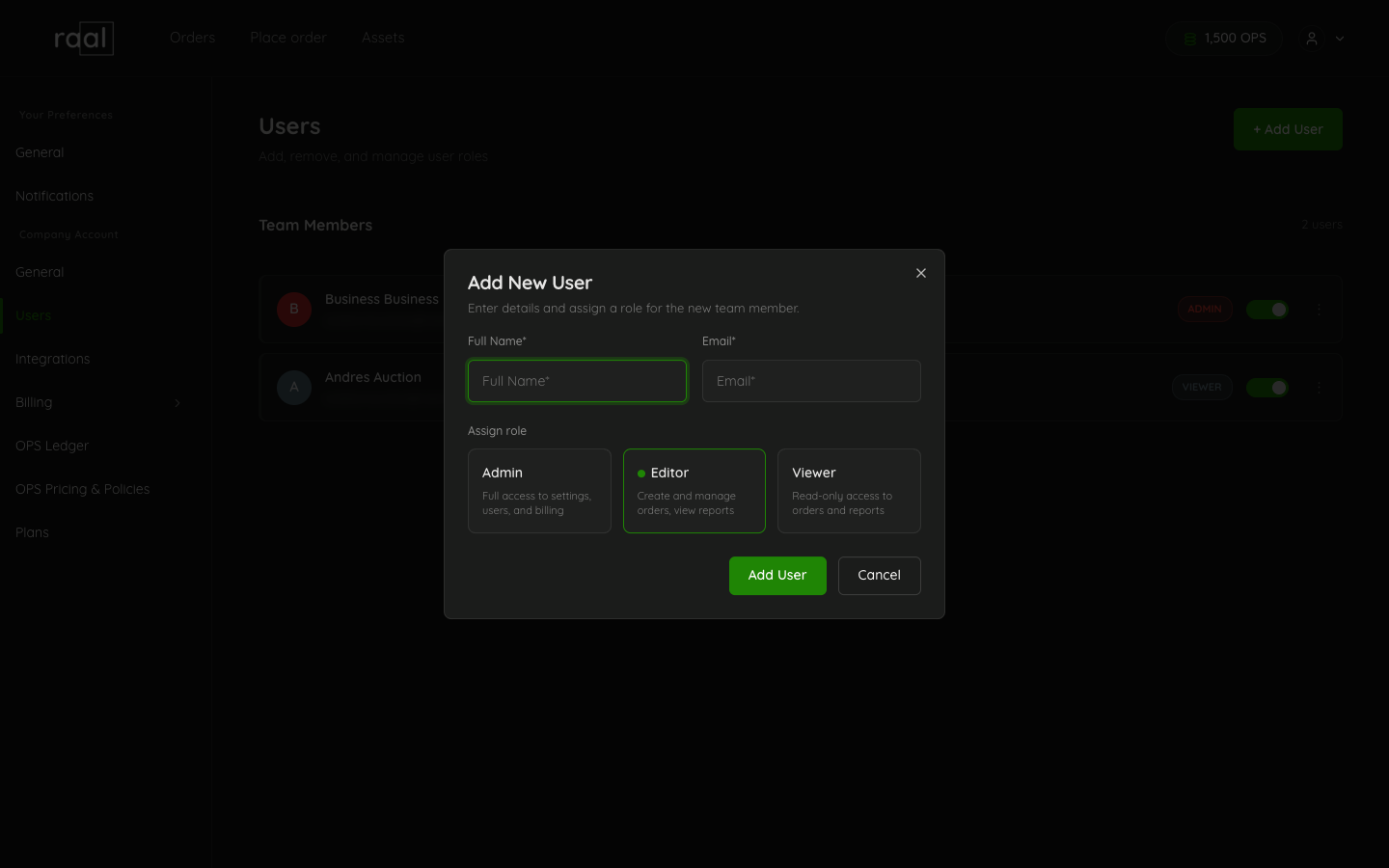
In the modal:
Full Name (required).
Email (required). This is the address Raal will send the welcome invite to.
Assign role: pick Admin, Editor, or Viewer. The card descriptions explain what each role can do.
Click Add User. The modal closes and the new teammate appears in the team-members list immediately.
On Pay as you go the Editor and Viewer cards carry a lock and cannot be selected, so every invite on that plan is a full Admin. On Starter and above you can pick any of the three, and you can change it later.
Changing someone's role
You are not locked into the role you picked at invite time. On the Users page, click the three-dot button at the end of a person's row and choose Edit role. The dialog shows the same three role cards as the invite form, with their current role already selected. Pick a different one and click Save role. The change applies as soon as you save.
Changing a role needs the Starter plan or higher, exactly like assigning one at invite time. On Pay as you go the Editor and Viewer cards stay locked and clicking one opens the upgrade prompt.
You cannot change your own role. The three-dot button on your own row is disabled, and hovering it explains why. Demoting yourself would hide every Company Account page from you, the Users page included, so there would be no way back. Ask another Admin to make the change.
Role changes are not retroactive. Orders and assets someone created keep their name whatever their role becomes.
Removing someone
The same three-dot menu carries Delete user, but it stays greyed out until the person has been deactivated. Switch off the toggle on their row first, then delete. Deactivating is the reversible step, and it also frees their seat, so it is usually all you need.
Deleting removes their sign-in permanently and cannot be undone. Their orders, comments and asset history stay in place under their name, so nothing in your records loses its author. See Deactivating or reactivating a user for the full flow.
What the invited user sees
They receive an email from Raal with a link to set up their password. They can also use Continue with Google, or SSO if it has been set up for your domain.
After they sign in for the first time, they land on the company workspace you invited them to.
Common issues
"User already exists": that email is already attached to another Raal account. Check whether they're already in your workspace (search the list) or another company workspace. Contact support if you need to merge.
They didn't get the invite: ask them to check spam or junk first. If it still hasn't arrived after 10 minutes, contact support and we can re-send.