
Editing, cloning and checking in a device
The row menu on the register, what Clone and Check-in do, and the wizard in edit mode.
Every row in the register has a menu behind the three dots on the right. It holds five actions, and two of them change the device immediately without opening anything.
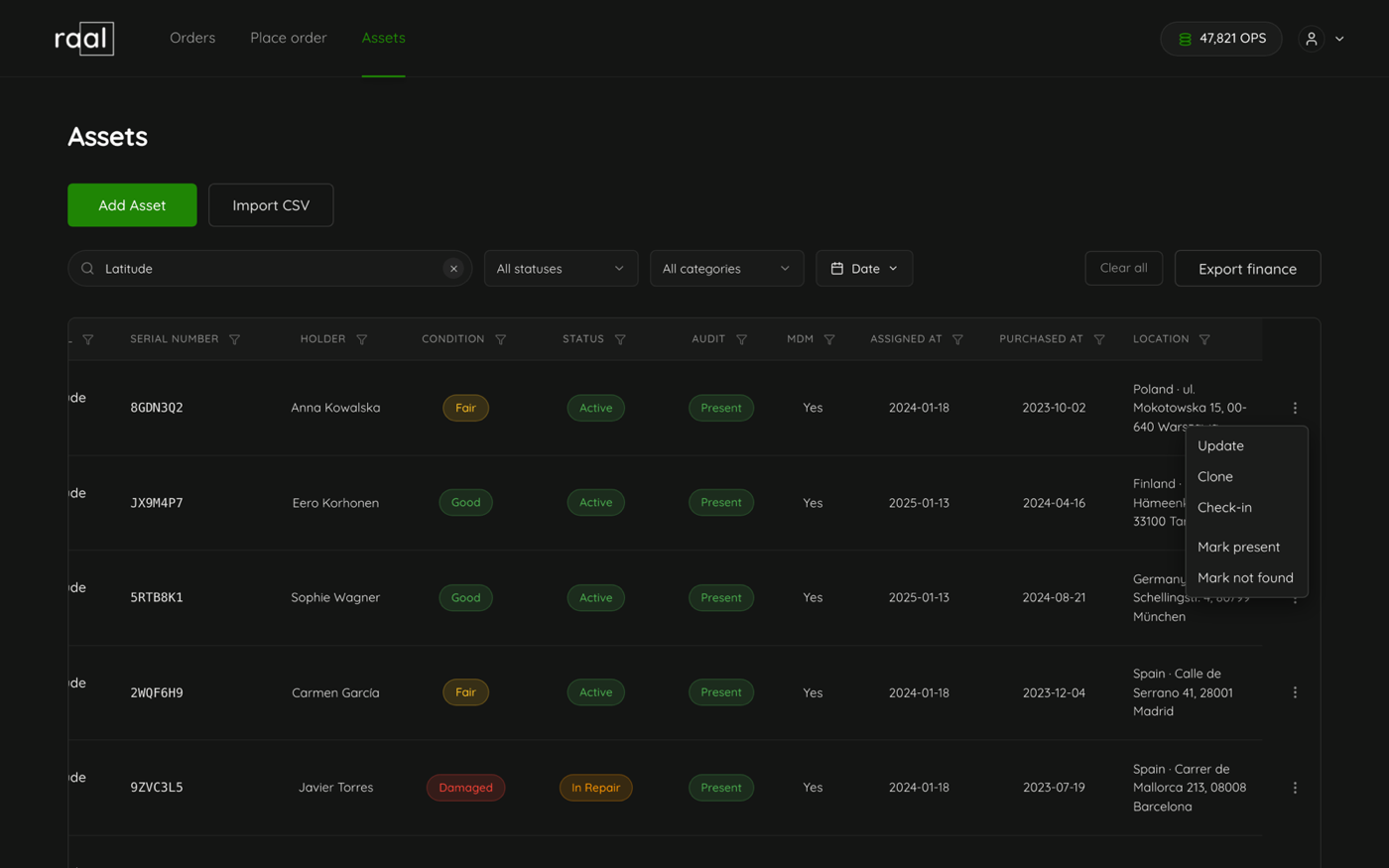
Update
Update opens the same seven step wizard you used to add the device, this time headed Edit asset and prefilled. Every field is editable, and you can jump straight to the step you need from the left rail.
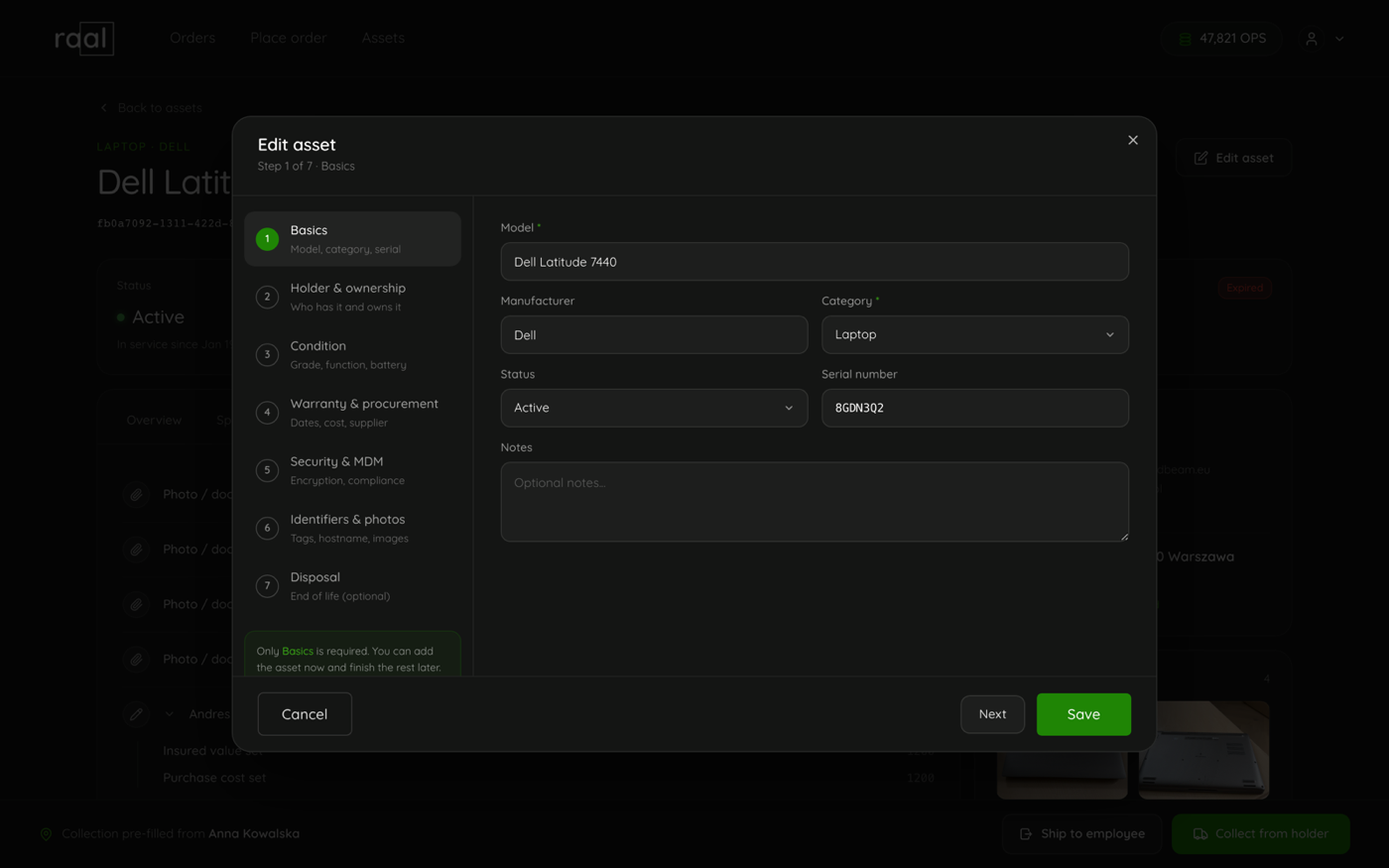
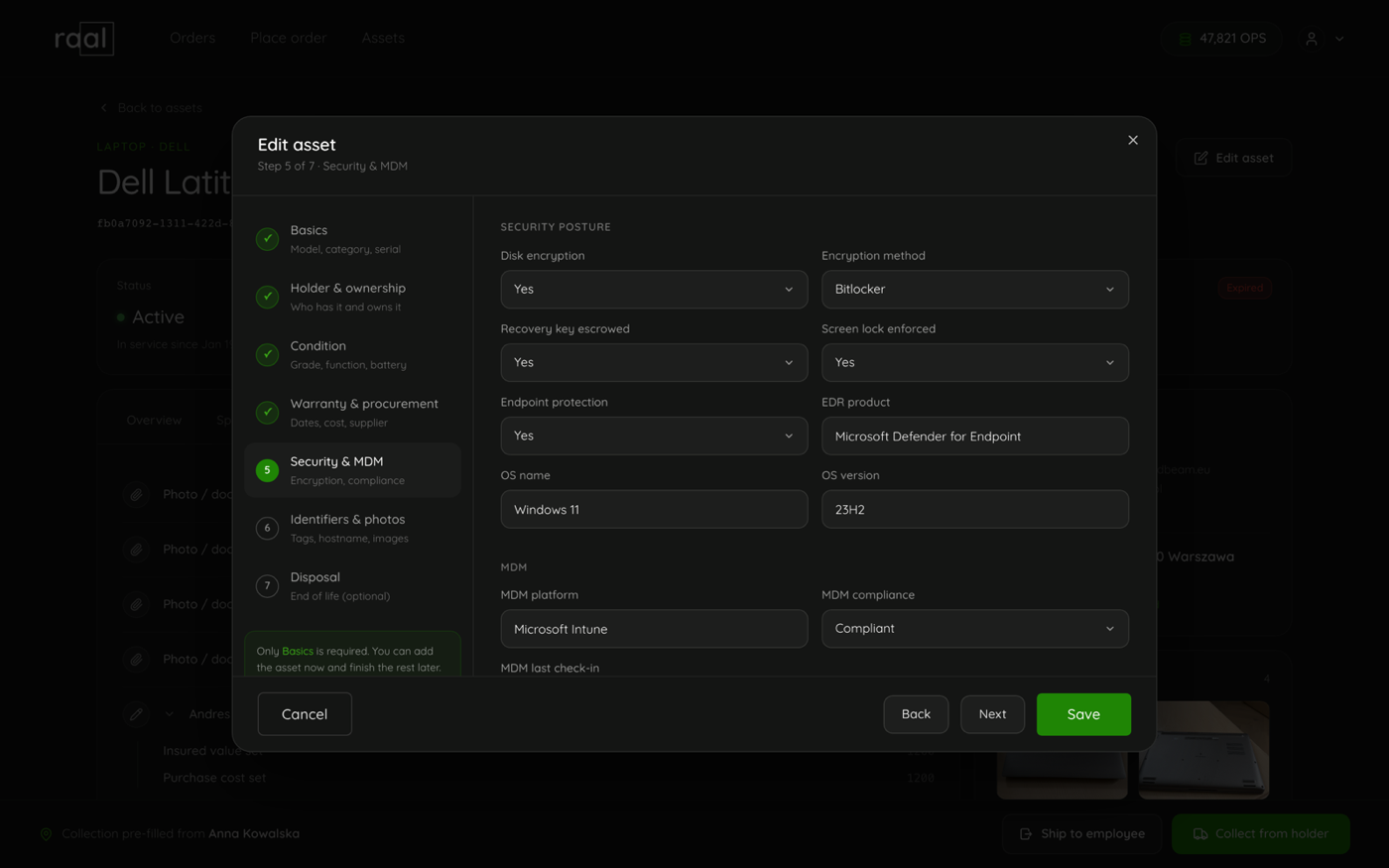
You can also reach this from the device itself: open the asset and click Edit asset in the top right.
Two behaviours to know about. Device in use from is locked once it has a value and needs the Override button, which is recorded in the activity trail. And if somebody else saved the same device while you had the wizard open, saving gives "Asset was modified by another request". Close the wizard, reopen it to pick up their change, and redo yours.
Clone
Clone opens the Add asset wizard prefilled from the device you clicked, with the serial number left blank. It is the fastest way to register a batch of identical machines: clone, type the new serial, save, repeat.
Check-in
Check-in is a single click with no confirmation dialog. It sets the status to In stock and the returned date to today, and shows "Checked in" with the message "<model> is back in stock." Use it when a device lands back on your desk. It does not clear the holder, so if the device is genuinely unassigned now, clear the holder fields in the wizard as well.
Mark present and Mark not found
These two record a physical inventory check, the sort you do walking round an office with a list. They set the Audit column and are separate from status: a device can be Active and Not found at the same time, which is exactly the situation worth spotting.
The same two buttons appear on the Overview tab of the device itself, under Physical presence, with the note "Confirms this specific device was physically located in a manual inventory check."
Deleting a device
There is no Delete in the row menu. Deleting a device is an admin only action and it is permanent: the device, its history and its attachments go. Orders that moved the device keep their record. In most cases Retired is the status you actually want, because it keeps the history.