
The Assets page: your device register
What the register shows, what each column means, and the buttons that live on the page.
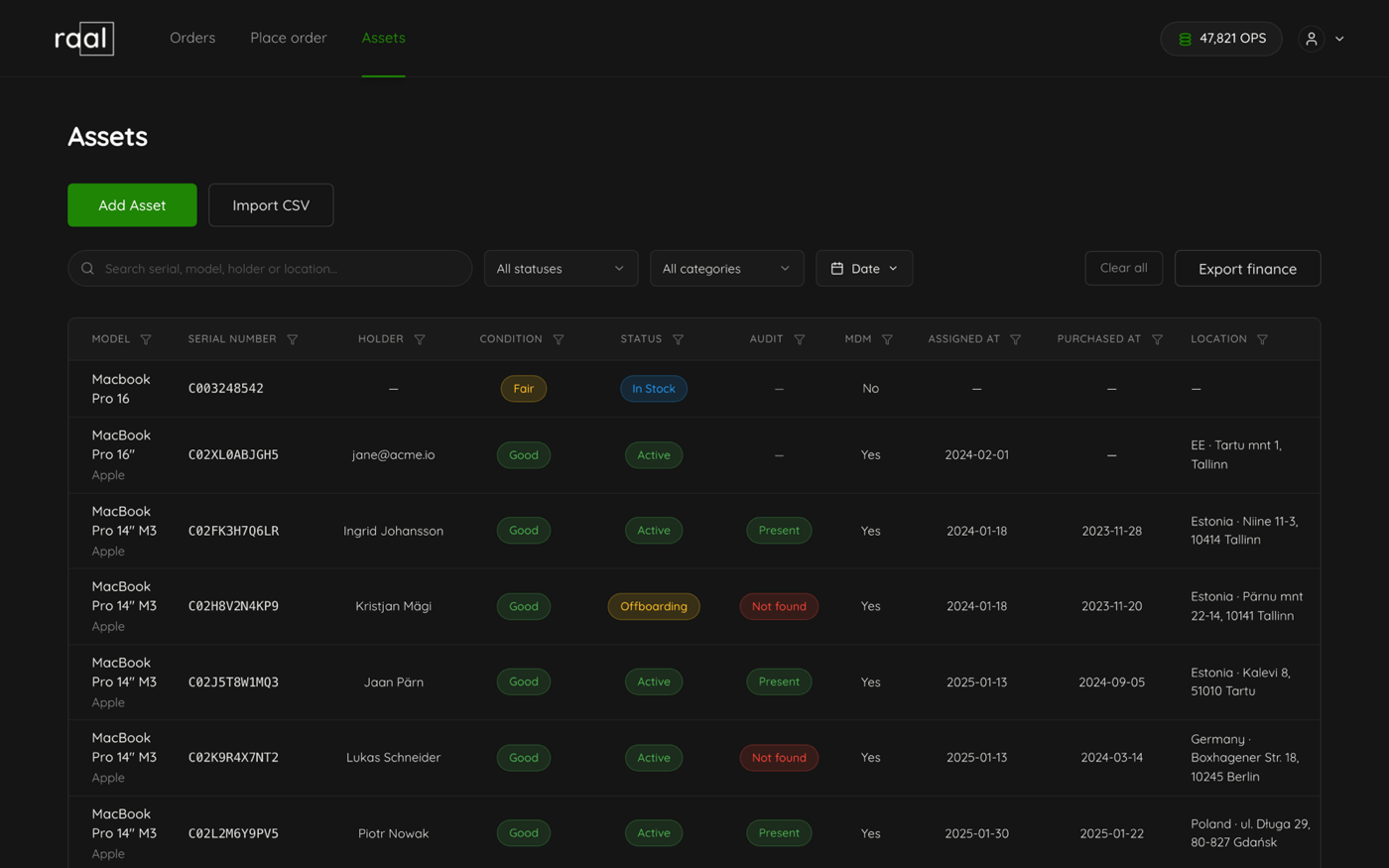
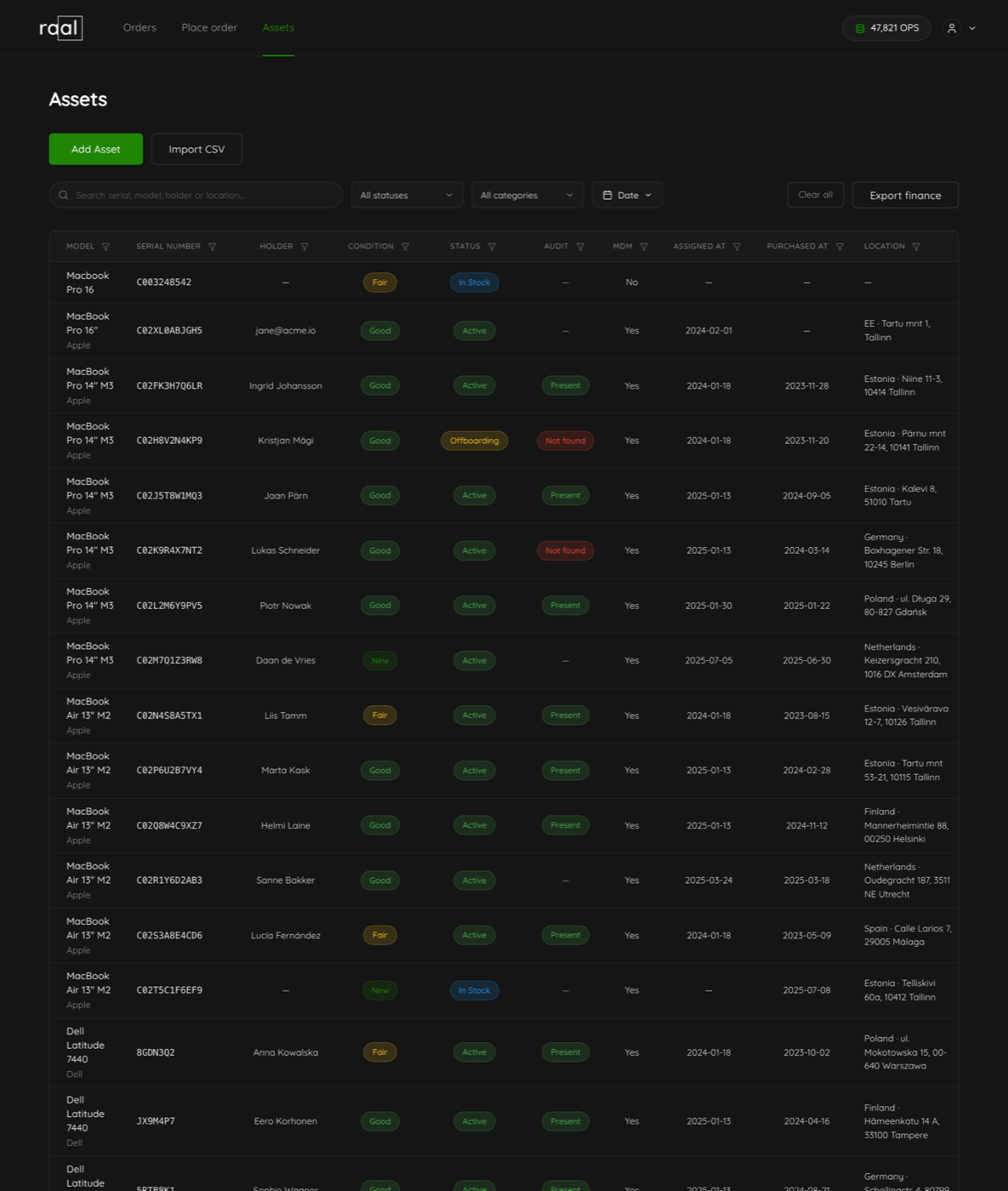
The Assets page is your register of every device your company owns. It opens as a table, one row per device. Click anywhere on a row to open that device.
Where to find it
Assets sits in the top navigation, between Orders and Place order. It is included on the Starter, Pro, Business and Enterprise plans. On Pay per shipment the link stays visible with a padlock and the page shows a preview: one sample device you can read and the rest blurred.
What each column tells you
Model: the model, with the manufacturer in smaller text underneath.
Serial Number: the device serial. Optional, but it is what links a device to the shipments that move it.
Holder: who currently has the device.
Condition: the grade badge, from New down to Damaged.
Status: where the device is in its life, for example Active or In stock.
Audit: the result of the last manual check, Present or Not found.
MDM: Yes or No, whether the device is enrolled.
Assigned at and Purchased at: the two dates you are most likely to filter on.
Location: country and address.
A field that has never been filled in shows as a dash rather than an empty cell.
The buttons on the page
Add asset opens the seven step wizard for a single device.
Import CSV opens the bulk import.
Export finance downloads asset-finance.csv with purchase cost, useful life and the current depreciated value. It exports exactly what you are looking at, so any filter you have applied is respected.
Clear all resets the search box, every column filter, the date filter and the page size in one click.
Rows that come from your MDM
If Jamf or Mosyle is connected, devices your MDM reports but your register does not hold appear with a different background. They have no row menu, cannot be edited, and carry no condition, warranty or finance data until you add them properly. They are read from the MDM separately from the register, so a slow or unreachable MDM never holds up the table, and the list is refreshed about every five minutes. They are only listed on the first page, and the search and filters leave them alone.
Paging through the register
At the bottom of the table, Items per page offers 10, 25 or 50, and defaults to 25. Next to it a counter reads something like "1 - 25 Of 137", and the two chevrons move you a page at a time.
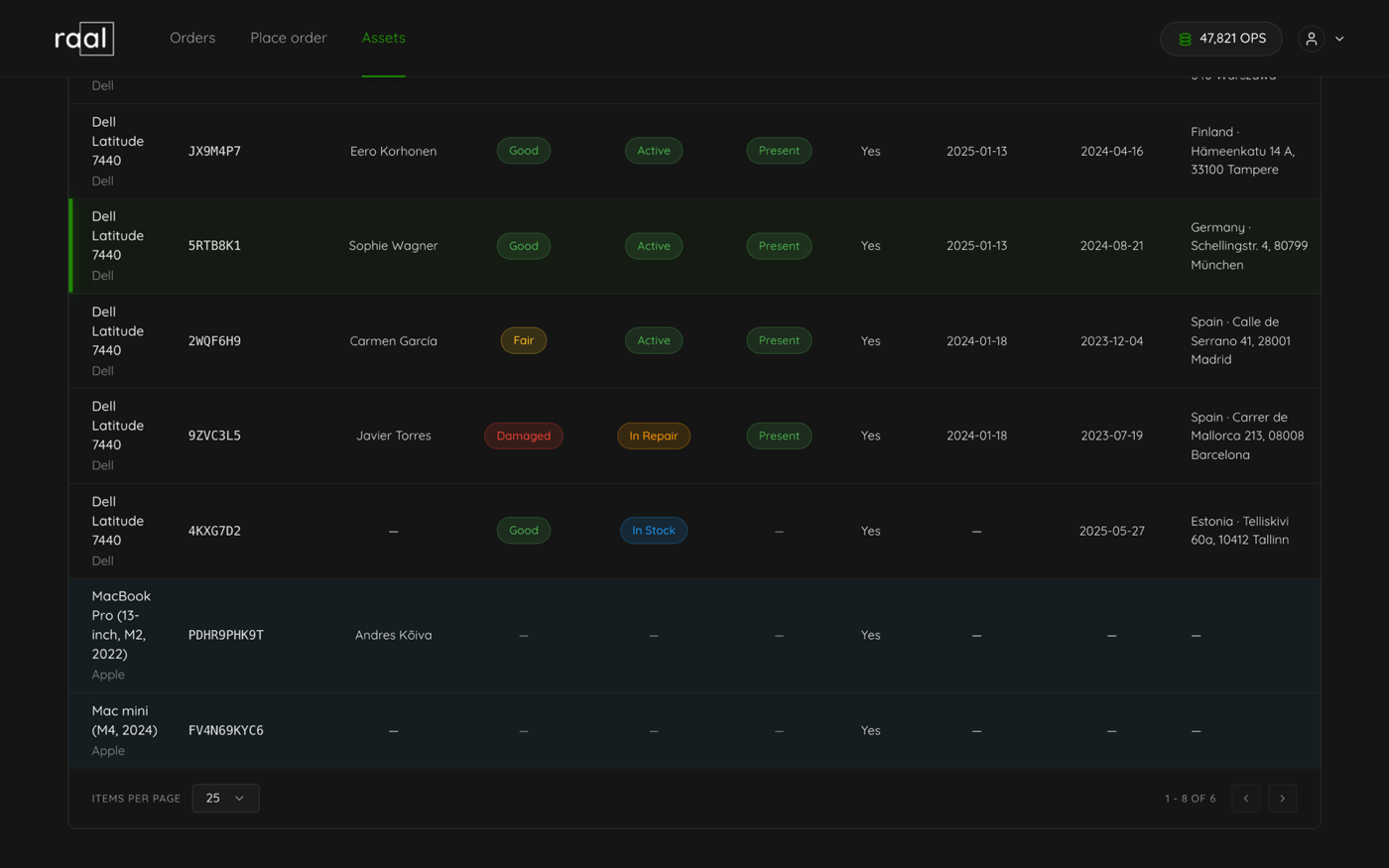
There are no checkboxes and no bulk actions on this table. To change many devices at once, use the CSV import.