
Roles explained: Admin, Editor, Viewer
What each role can see and do in the Raal portal.
Every user in your Raal workspace has one of three roles. Pick the lowest role that lets the user do their job.
Roles start at Starter
Pay as you go includes one user. That account is a full Admin, because it is the one that created the company, and Add User is locked, so there is nobody to give a role to. Roles do not come into it on that plan.
From Starter upwards you invite colleagues and give each of them Admin, Editor or Viewer, and an Admin can change it later.
If a company moves down to Pay as you go, nobody is removed. Everyone already there keeps their access and the role they had, so Editors and Viewers can still exist on that plan. An Admin can still promote someone to Admin, but cannot move anyone down to Editor or Viewer until the plan includes roles again.
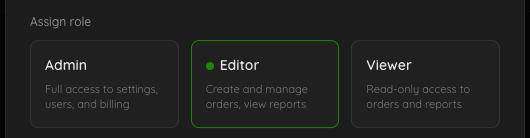
The three roles
Admin
Full control. Admins can:
Everything Editors and Viewers can do.
Add and remove users.
Configure billing details and payment methods.
Pick the company subscription plan.
Switch the payment policy (pay at order placement, pay after fulfilment, or a monthly consolidated invoice). This one needs Starter or higher: on Pay as you go an Admin sees the policies but cannot change them.
Connect or disconnect integrations (BambooHR, Jamf MDM, Mosyle MDM). Integrations need Pro or higher, so a Starter Admin sees the cards with a lock on them.
Edit the company profile (legal name, address).
See all orders placed by anyone in the company.
You should keep the number of Admins small (typically just the team lead and finance owner).
Editor
Everything order-related, plus account-wide visibility, minus the ability to change configuration. Editors can:
Place new orders.
Add comments to existing orders.
View order history (theirs and others').
See what an order cost in OPS, from that order's price breakdown. This appears on Starter and above; on Pay as you go no role sees OPS figures.
Edit who receives invoices, from a checkout screen.
Update their own profile.
Editors cannot:
Add or remove other users.
Change billing details or payment methods.
Switch the subscription plan or payment policy.
Open the Company Account part of Settings at all, which is where the invoice list, the OPS Ledger, OPS pricing and Plans live.
This is the right role for most IT, HR, and office-management users.
Viewer
Read-only. Viewers can:
See all orders and their statuses.
Update their own profile.
Viewers cannot place new orders, comment, or change any settings. Use this role for stakeholders who need visibility but shouldn't transact (e.g. finance reviewers, executives).
Who can see invoices and OPS
The invoice list, the OPS Ledger, OPS Pricing and Policies and Plans all sit under Company Account in Settings, and that whole section is Admin-only. The OPS balance chip in the header is Admin-only as well, and it only appears on Starter and above, so an Admin on Pay as you go does not see it either. An Editor or Viewer who opens one of those addresses directly lands on their own General settings instead.
What everyone can see is the OPS cost of an individual order, in that order's price breakdown. That is gated on the plan rather than the role: it shows on Starter and above, to Admins, Editors and Viewers alike.
How role assignment works in the UI
When you invite a user, under Settings, then Users, you pick one of three role cards: Admin, Editor, or Viewer. Internally this maps to one or more permission groups (Admin includes Editor and Viewer permissions; Editor includes Viewer). You don't need to manage groups individually; the role card handles it.
Changing someone's role
An Admin can change anyone's role at any time. On the Users page, click the three-dot button at the end of a person's row and choose Edit role. The dialog shows the same three role cards as the invite form, with their current role already selected. Pick another and click Save role. The change applies as soon as you save.
Changing a role needs Starter or higher. Promotion is the exception: on a plan without roles the only card that can be picked is Admin, so a company that moved down to Pay as you go can still make someone an Admin, but cannot move anyone back down.
You cannot change your own role. The three-dot button on your own row is disabled. Demoting yourself would hide every Company Account page from you, the Users page included, so there would be no way back. Ask another Admin.
Nothing a person already did changes with their role. Orders, comments and asset history keep their name.
Your role and your plan are two different limits
Some things are decided by your role, and some by the plan your company is on. When a feature is not included in the plan it is not hidden: it stays visible with a padlock, and what the lock offers you depends on your role.
Admins see an Upgrade link that opens the Plans page.
Editors and Viewers see Ask your admin to upgrade instead, and the pop-up adds that only an admin can change the plan. This is not a mistake: the Plans page sits under Company Account, which non-admins cannot open, so a button there would lead nowhere.
Two notices follow the same rule. The user-limit notice reaches Admins and Editors but never Viewers, and it tells non-admins to contact one of their account admins. The billing notice reaches Admins, and Editors only when something needs attention; Viewers never see it.
On Pay as you go
That plan includes a single user, so in practice there is one account and it is an Admin. The Users page reads "Your plan includes one user. Everyone already here keeps their access. Upgrade to add more.", the count shows 1 of 1 users, and Add User is locked. The limit counts active users and is checked only when you add someone, so nobody is ever removed by it, and deactivating somebody frees their place. Starter, Pro and Business do not cap the number of users.
Assets
The Assets register needs Starter or higher. The Assets link stays in the top navigation on every plan, with a padlock when it is not included, so you can see the feature exists before you pay for it.