
Signing up and verifying your email
Create your Raal account, with email or with Google / Microsoft single sign-on, then verify your email.
To use Raal you need an account.
You can sign up with email and password, or with Google or Microsoft single sign-on (SSO).
Option 1: Sign up with email
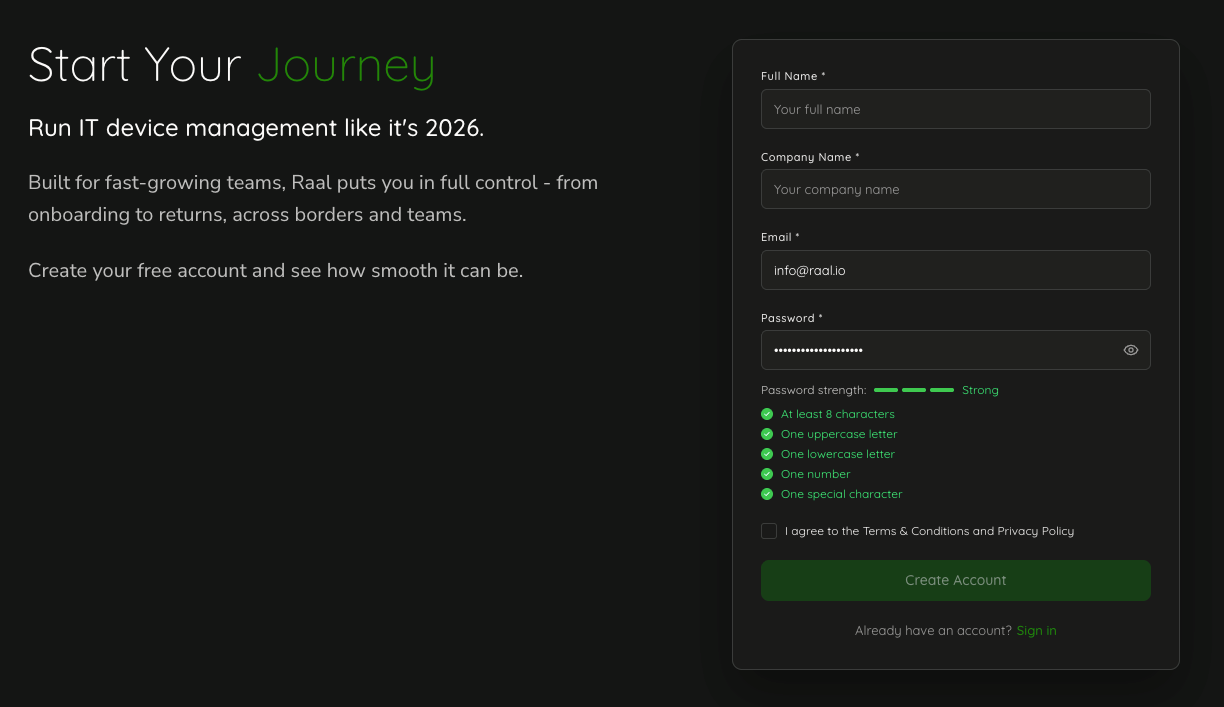
Go to the sign-up page.
Click Sign up with email, or just fill in the form below the divider.
Enter:
Full name: your name as it should appear in the portal.
Company name: the company you're signing up on behalf of. This creates your company workspace.
Email: your work email. Use the address you'll log in with.
Password: at least 8 characters, one uppercase letter, one lowercase letter, one number, and one special character.
Tick I agree to the Terms & Conditions and Privacy Policy. You can't continue without it.
Click Create Account.
Check your inbox for a verification email from Raal. Click the link to confirm your address.
After verification, you'll be redirected to the sign-in page. Sign in with the credentials you just created.
Didn't get the verification email?
Check your spam or junk folder.
Make sure you typed the email address correctly. If not, sign up again with the correct one.
Wait a couple of minutes; some email servers delay delivery.
If it still doesn't arrive, contact Raal support at hello@raal.io and we can verify your account manually.
Related articles
Why is my email field locked?
How to contact Raal support