
Photos and documents on an asset
The four device photo slots, and how to attach invoices, customs papers and contracts to a device.
Every device can carry up to four photos and any number of documents. They are two separate things in two different places.
The four photo slots
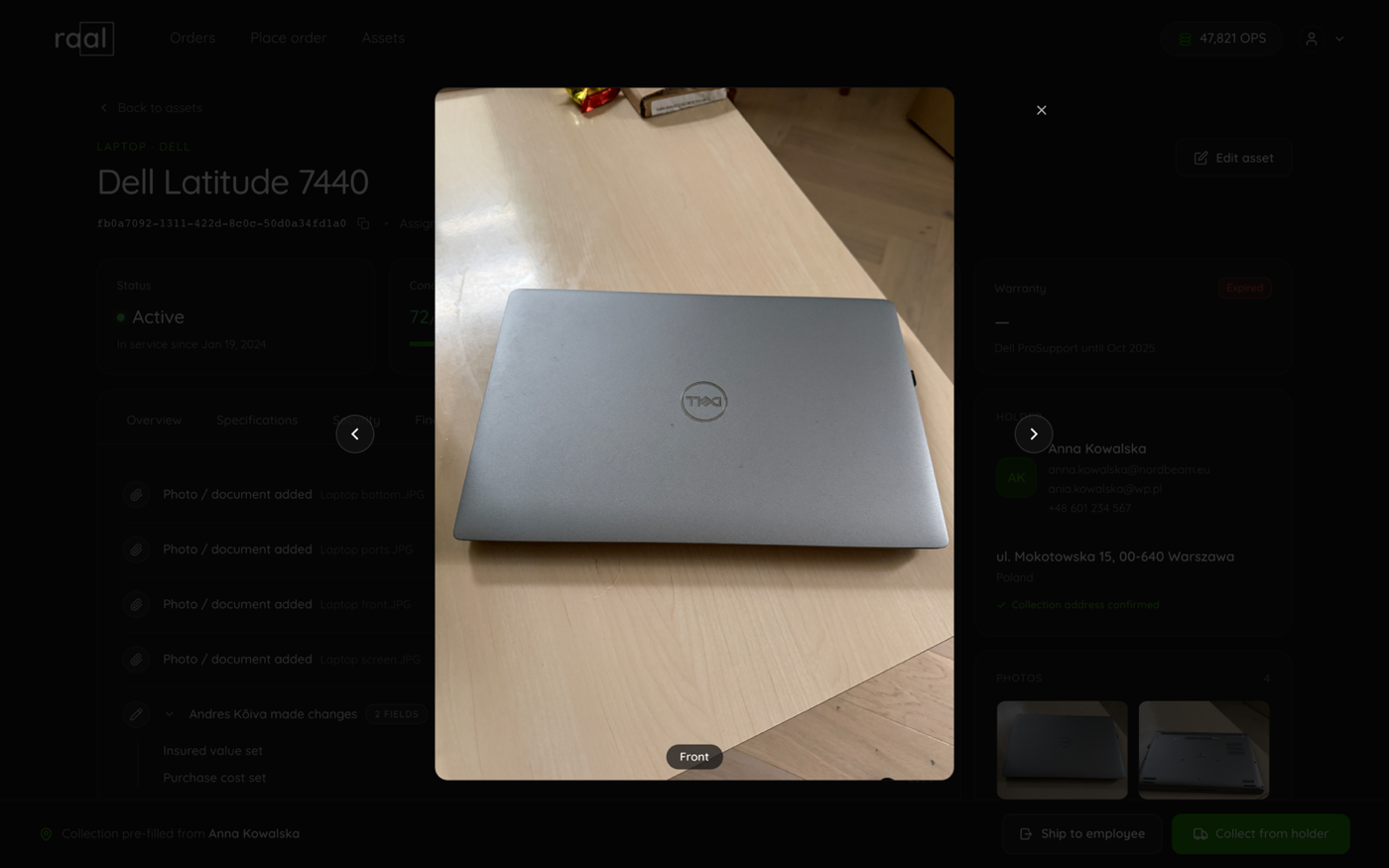
Photos live on step 6 of the wizard, Identifiers and photos, and in the Photos card on the device page. There are exactly four fixed slots: Front, Back, Screen and Ports. That is the maximum, and it is deliberate: the point is a consistent condition record for every machine, not an album.
An empty slot is a drop zone with a plus and an Upload button. Drag a file onto it or click to browse. A filled slot gets a Replace and Delete bar.
PNG, JPEG and WEBP all work, and so does HEIC straight off an iPhone, which is converted to JPEG in your browser before it uploads.
Photo changes save immediately
This is the one thing worth remembering. When you are editing an existing device, deleting or replacing a photo takes effect straight away, before you click Save. Cancelling the wizard afterwards will not bring the old photo back. Deleting asks "Delete photo?" first.
Viewing photos
On the device page, click any photo to open it full size. Arrow keys and the previous and next controls move between the four slots, and the caption tells you which angle you are looking at.
Documents
The Documents tab on the device page is for paperwork: purchase invoices, commercial invoices, customs declarations, certificates of origin, insurance, warranties, contracts, reports and manuals. Pick the type from the dropdown, add an optional description, then drop a file or use Upload document.
The hint states the rules: "Drag a file here, or use the button. PDF, Word, Excel, text or image up to 20 MB." Anything else is refused with "Unsupported file type", and Raal checks the actual contents of the file rather than trusting its extension.
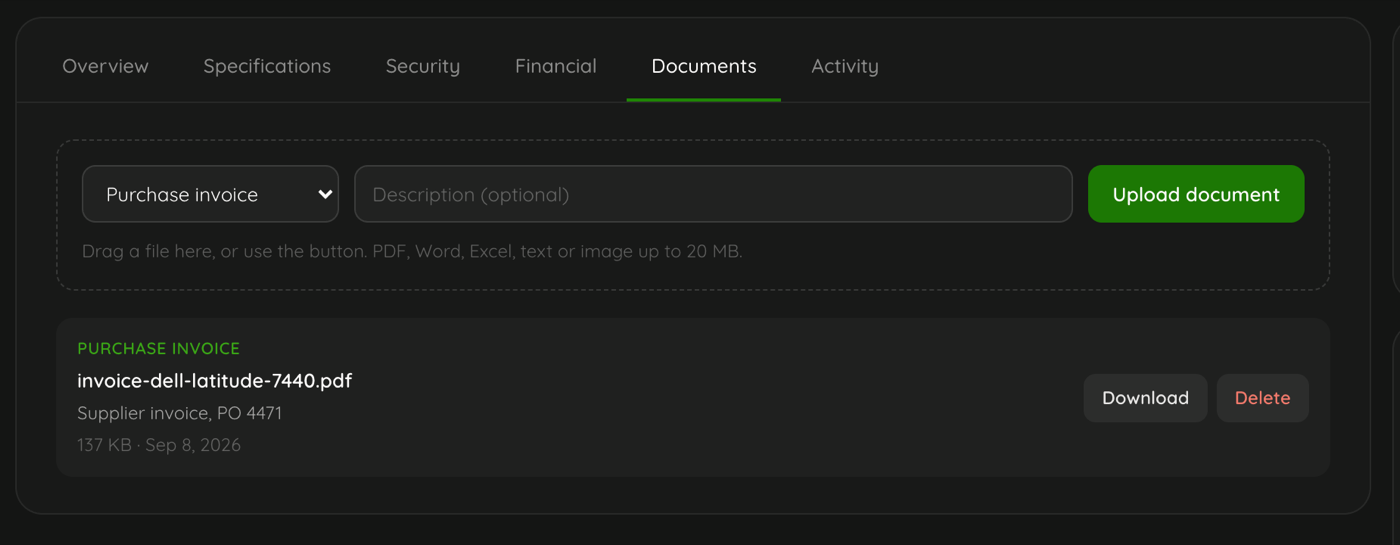
Each uploaded document lists its type, filename, description, size and date, with Download and Delete. Deleting asks you to confirm.
Both are recorded
Uploading or removing a photo or a document writes an entry into the device's activity trail, "Photo / document added" or "Attachment removed", with the filename and the person who did it, so you can always see who attached the invoice and when. The Activity tab picks the entry up the next time the device page loads.