
Assigning a holder to a device
What a holder is, how to assign one, how Raal keeps one holder record per person, and how to unassign.
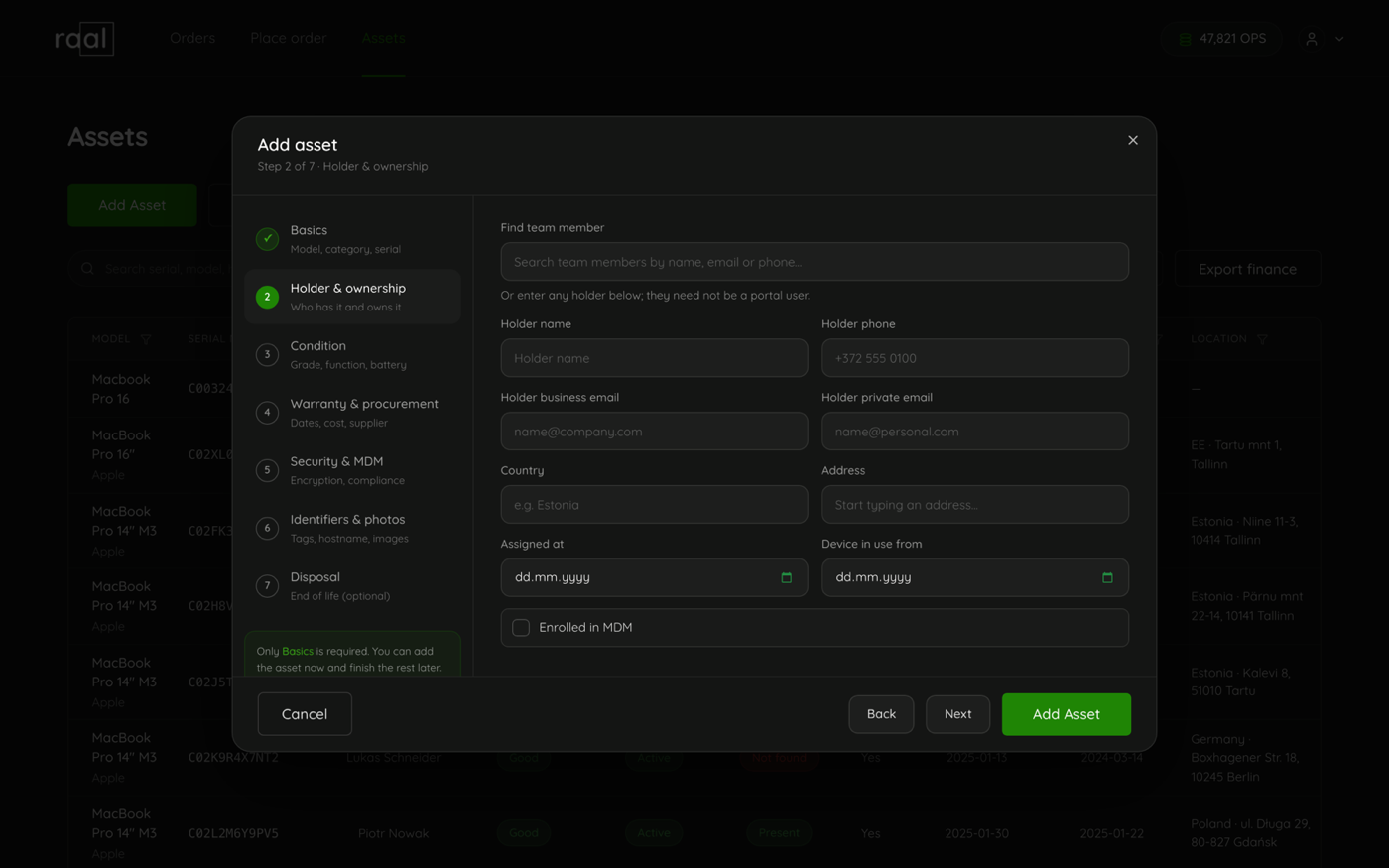
The holder is the person who currently has the device. Holders live on step 2 of the Add asset and Edit asset wizards, under Holder and ownership.
A holder does not have to be a portal user
This is the part that surprises people. The wizard spells it out: "Or enter any holder below; they do not have be a portal user." A contractor, a new starter who has not been invited yet, or someone who will never log in to Raal is a perfectly normal holder. Type their details in and save.
Assigning someone
Start typing in Find team member. If BambooHR or another HR integration is connected the suggestions come from there, otherwise from the people in your Raal account. It matches on name, email or phone.
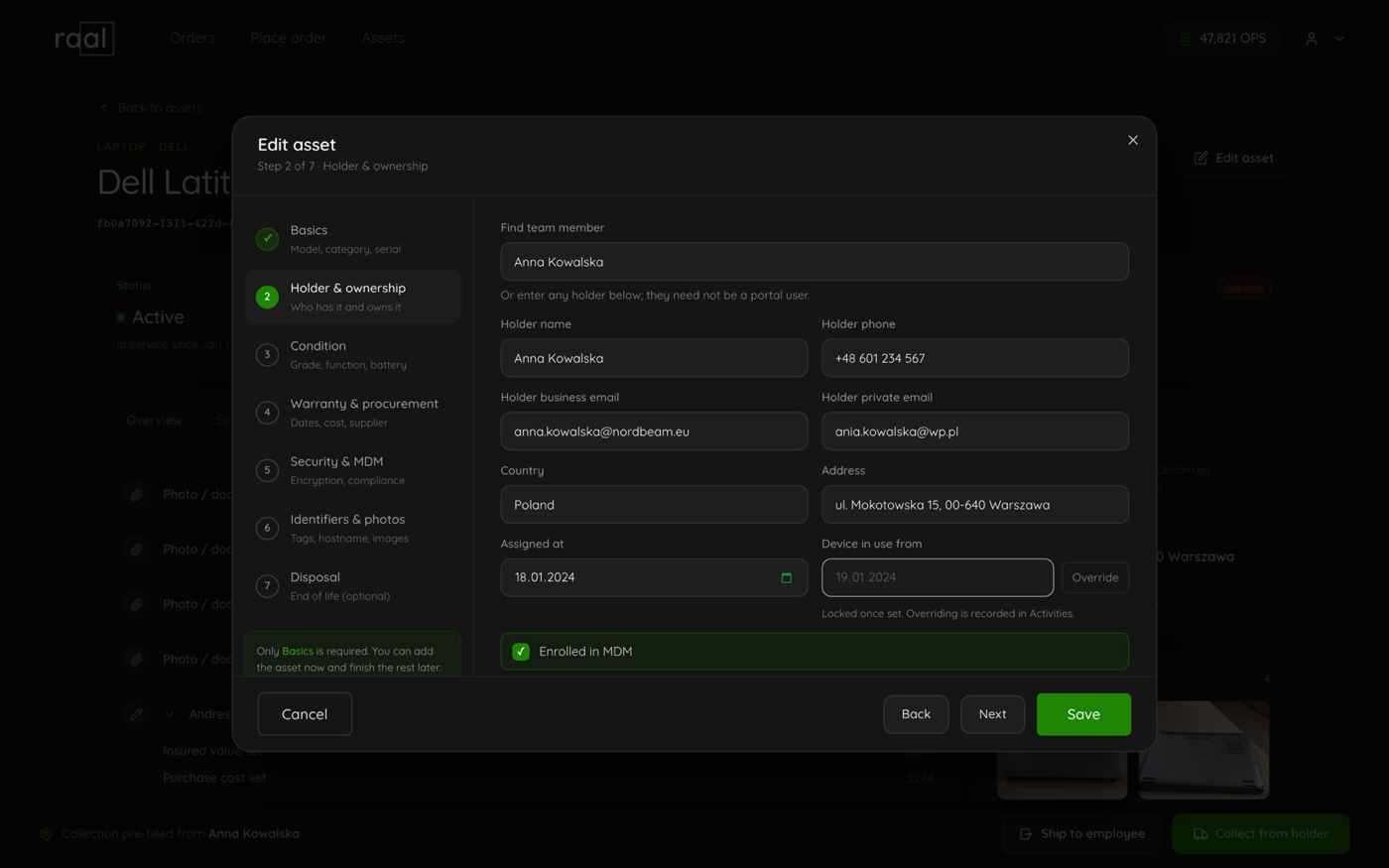
Pick someone. Their name, business email and phone drop into the fields below, and if they have a saved address the Country and Address fill in too.
Or skip the search and fill in Holder name, Holder phone, Holder business email and Holder private email by hand.
Set Assigned at if you know when the person got the device.
Save. The activity trail records "Assigned to" and the name.
Where a field can be filled from BambooHR, a small information marker sits next to the label with the note "This value may come from BambooHR via the HR integration. Please verify it."
One person, one holder record
Raal keeps a single holder record per person per company, keyed on the business email address, ignoring capitalisation. So if five laptops are assigned to the same business email, they all point at the same holder, and correcting that person's phone number on one device corrects it everywhere.
Holder private email is extra contact detail only. It is never used to match people up, which matters when you are offboarding somebody and their work address is about to stop working.
If you enter a holder with no business email at all, Raal cannot match them to anyone, so that holder belongs to that one device.
Unassigning
There is no Unassign button. Open Edit asset, clear the holder name, phone and both email fields on step 2, and save. The device shows as Unassigned and the trail records "Holder unassigned". A collection shipment does the same thing automatically when the device comes back.
Holder is not the same as owner
Owner, further down the same step, is not a person. It is how the device is owned, and it has three values: Company owned, Leased and BYOD.