
The asset detail page explained
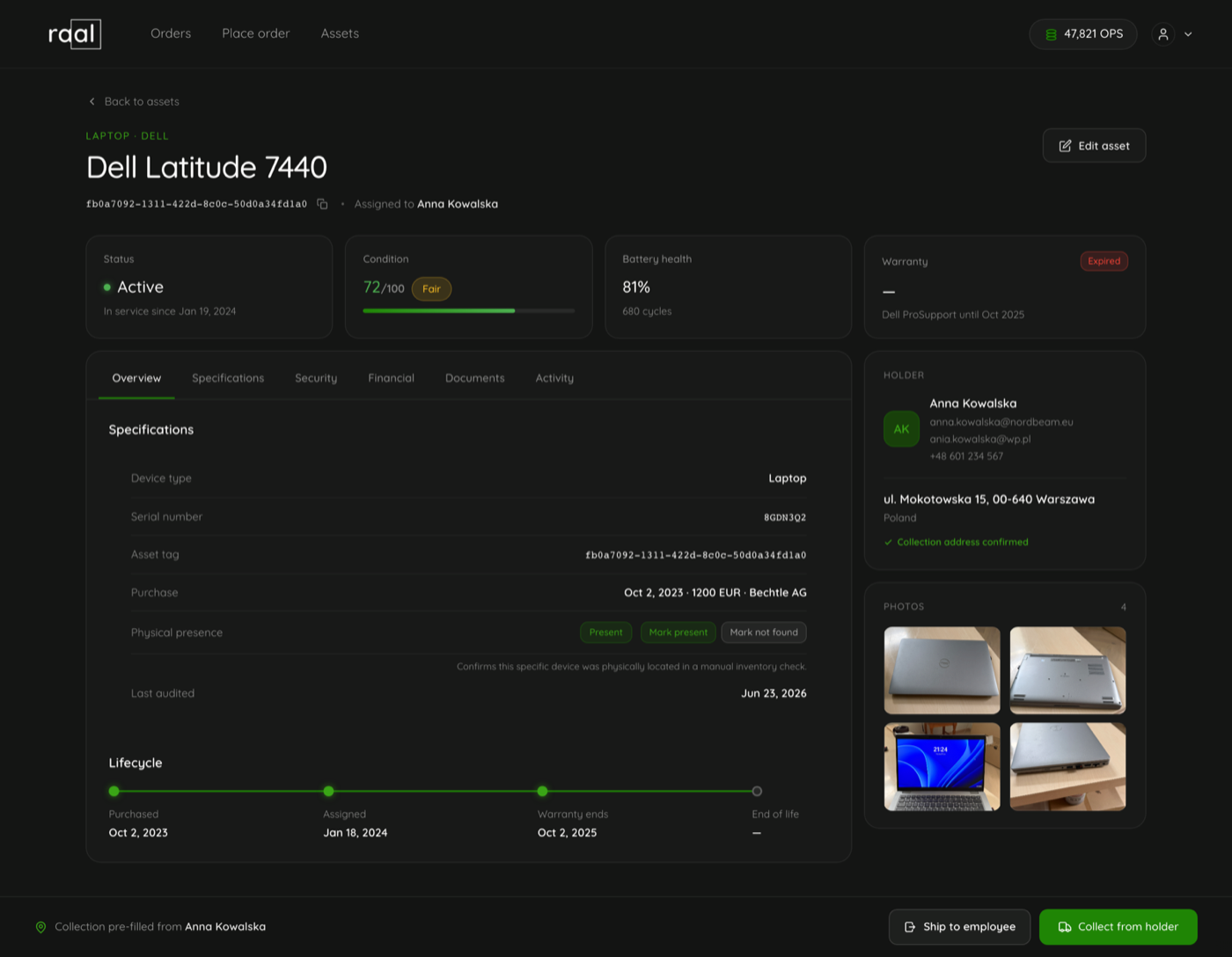
The four cards at the top, the six tabs, the lifecycle strip and the holder and photo rail on a single device.
Click any row in the register to open a device. The page puts the four things you usually want at the top, then everything else behind tabs.
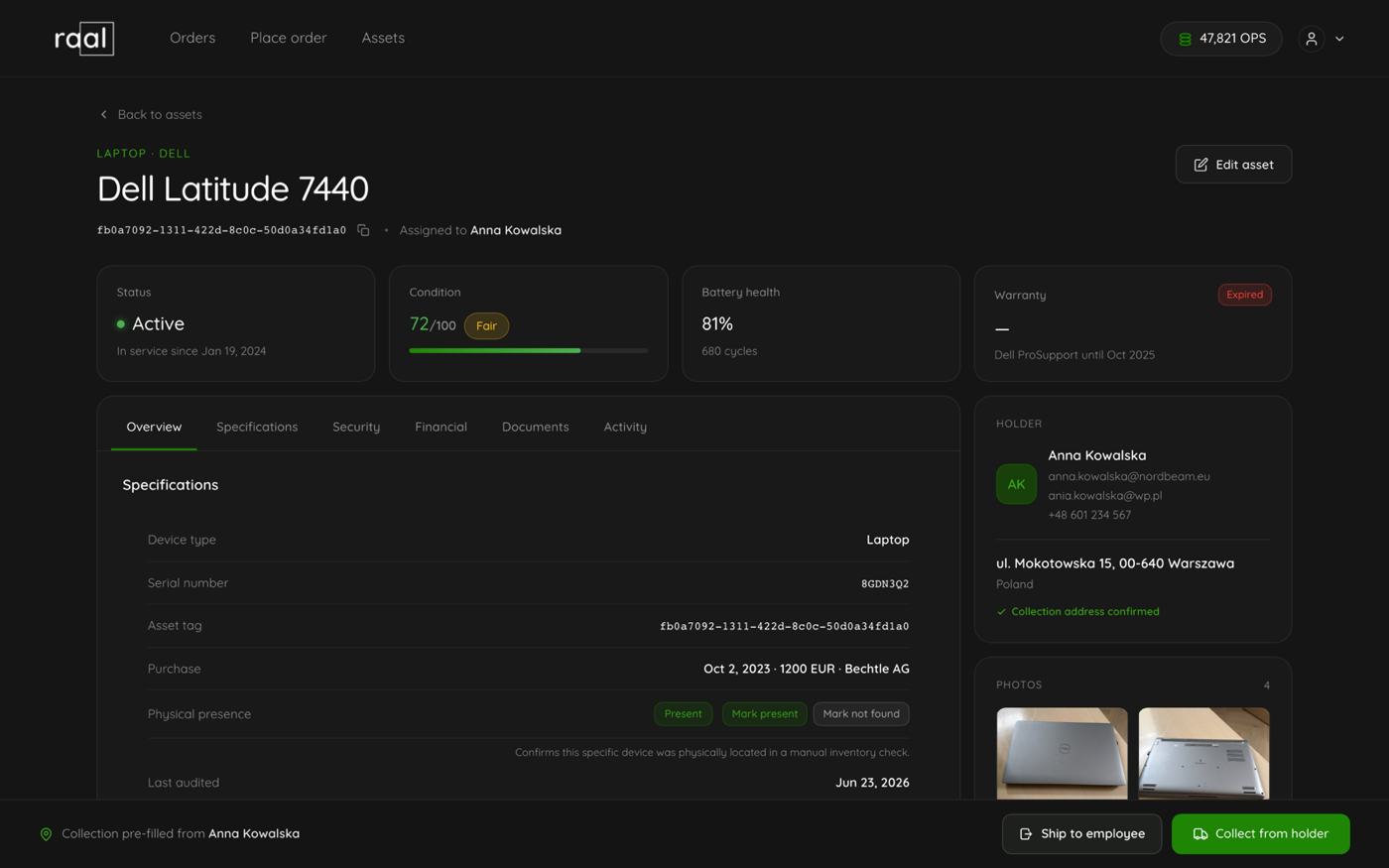
The four cards
Status: the status word, a coloured dot, and a line telling you what it means right now, for example "In service since Jul 1, 2026" or "On the move".
Condition: the score out of 100 with the grade badge and a bar.
Battery health: the percentage, with the cycle count underneath, or "No data".
Warranty: Valid or Expired, how many months are left, and who honours it.
Under the model name sits the asset tag with a copy button, and either Assigned to and a name, or Unassigned.
The tabs
Overview: device type, serial, asset tag, purchase line, and the Physical presence block with the Mark present and Mark not found buttons.
Specifications: manufacturer, category, operating system, serial, physical tag, hostname, MAC address, IMEI, and Source, which tells you whether the record came from manual entry, an import, or a sync from your MDM.
Security: MDM compliance and platform, disk encryption, whether the recovery key is escrowed, endpoint protection, screen lock, data classification and acceptable use.
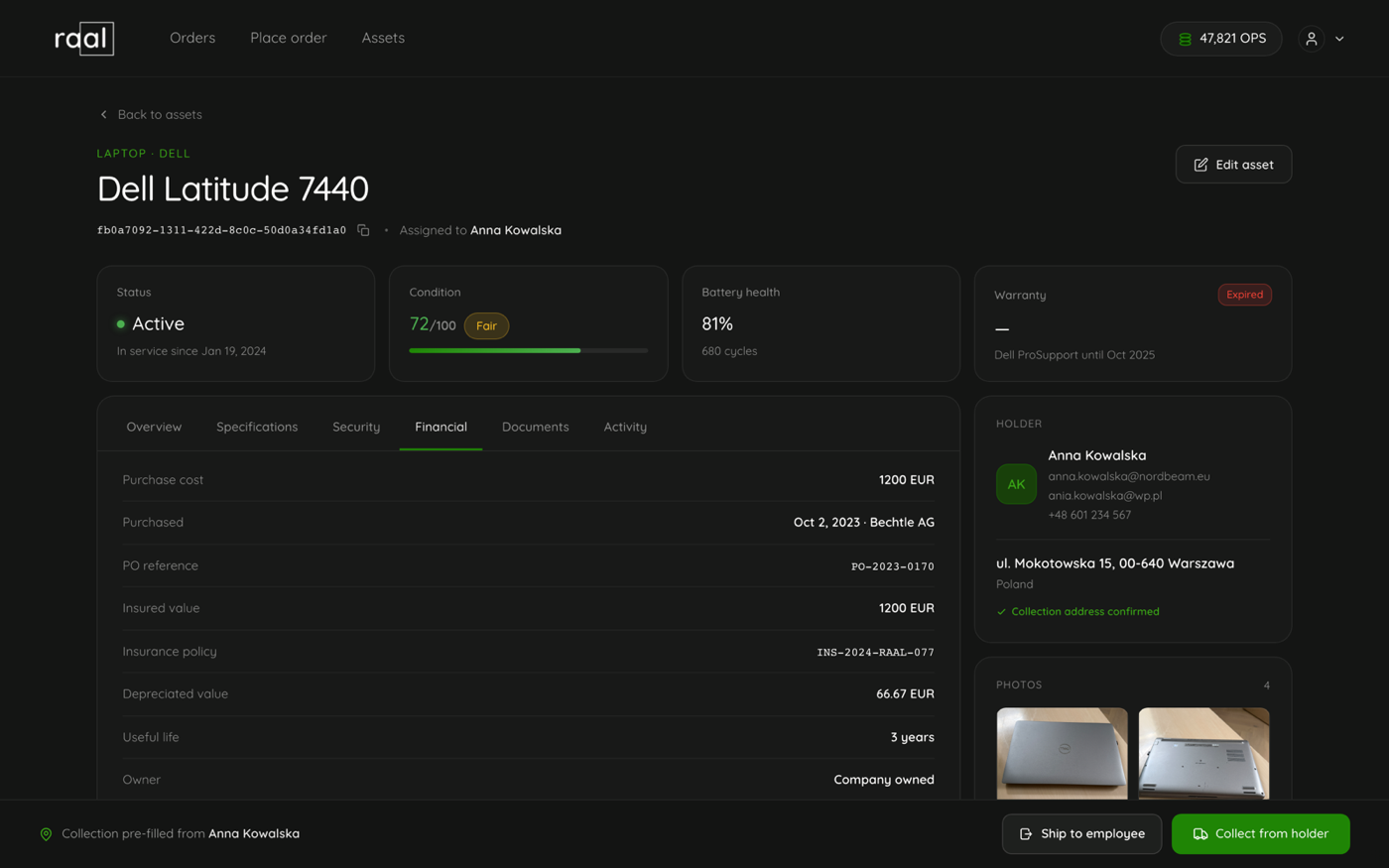
Financial: purchase cost, PO reference, insured value, depreciated value, useful life, owner and department.
Documents: invoices, customs papers and anything else attached to this device.
Activity: the full audit trail.
Disposal: this one only appears once the device is retired or a disposal field has been filled in.
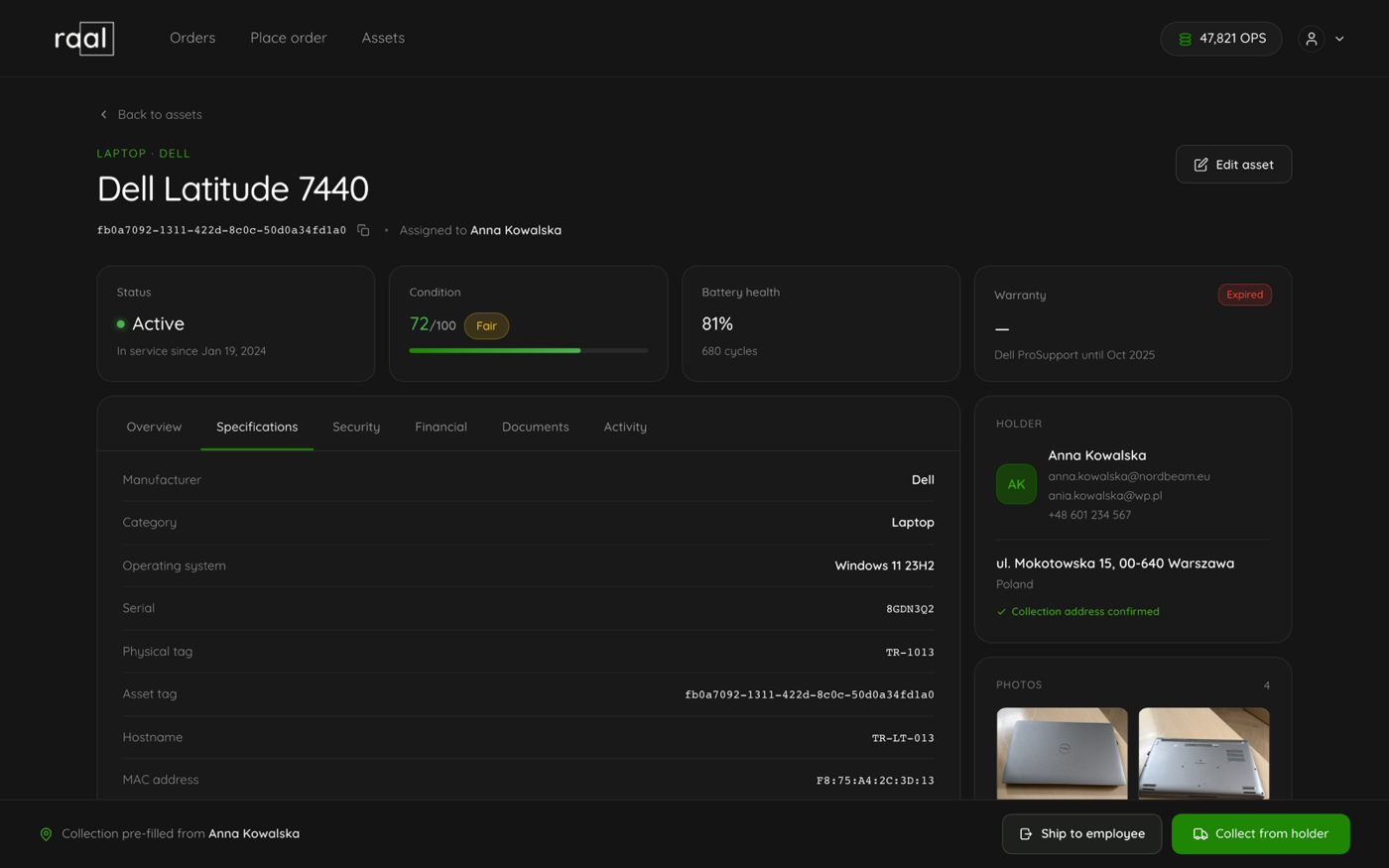
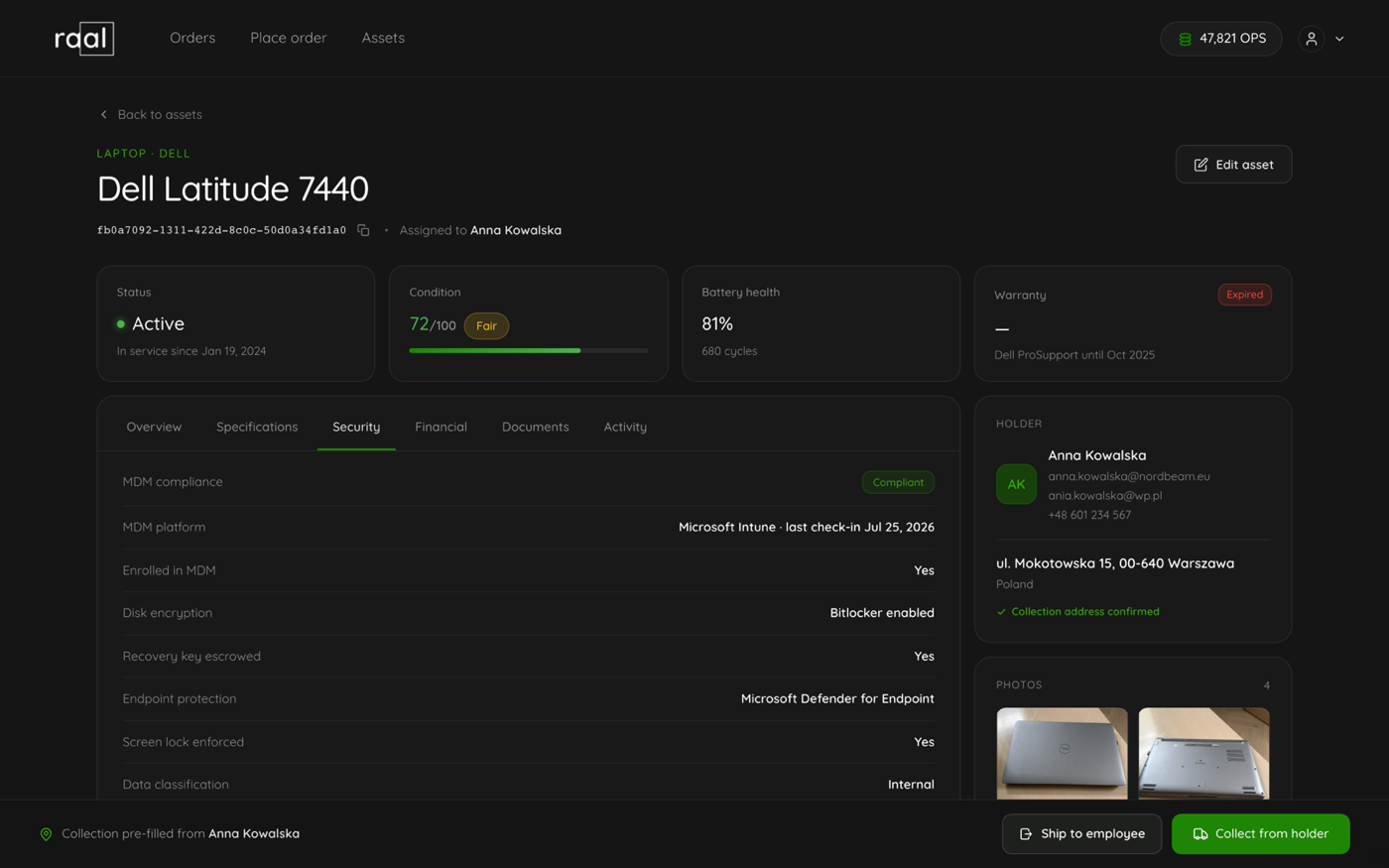
How the depreciated value is worked out
The Financial tab shows a depreciated value that Raal calculates rather than stores. It is straight line from the purchase cost over the useful life, stepping on the first of each month, with no depreciation in the month of purchase. Useful life comes from the device if you set one, otherwise from your company default, otherwise four years. The tab labels which one applied, for example "3 years (company default)".
The lifecycle strip and the rail
Below the tabs a horizontal strip marks four milestones: Purchased, Assigned, Warranty ends and End of life. The Assigned milestone may carry a note reading "from delivery" or "from MDM", which tells you the date was written by a shipment or by the nightly sync rather than typed by someone.
On the right, the Holder card shows the person and their contact details plus the location, and the Photos card shows the four slots.
Devices that are not in your register yet
If you open a device that MDM reports but that you have not added, an amber banner explains it: the page shows what the MDM reports live, and the fields your register tracks, such as condition, warranty, finance and compliance, are not available until you add the device. Editing, documents, audits and shipping are all hidden on that page.